Encounter completion — orders & prescribing
Order and prescribe inside the visit: the unified order search, the structured prescription builder, medication safety checks and PDMP, diagnosis links, and EPCS signing for controlled substances.
Encounter completion — orders & prescribing
Order and prescribe inside the visit: the unified order search, the structured prescription builder, medication safety checks and PDMP, diagnosis links, and EPCS signing for controlled substances.
Order medications, labs, imaging & more
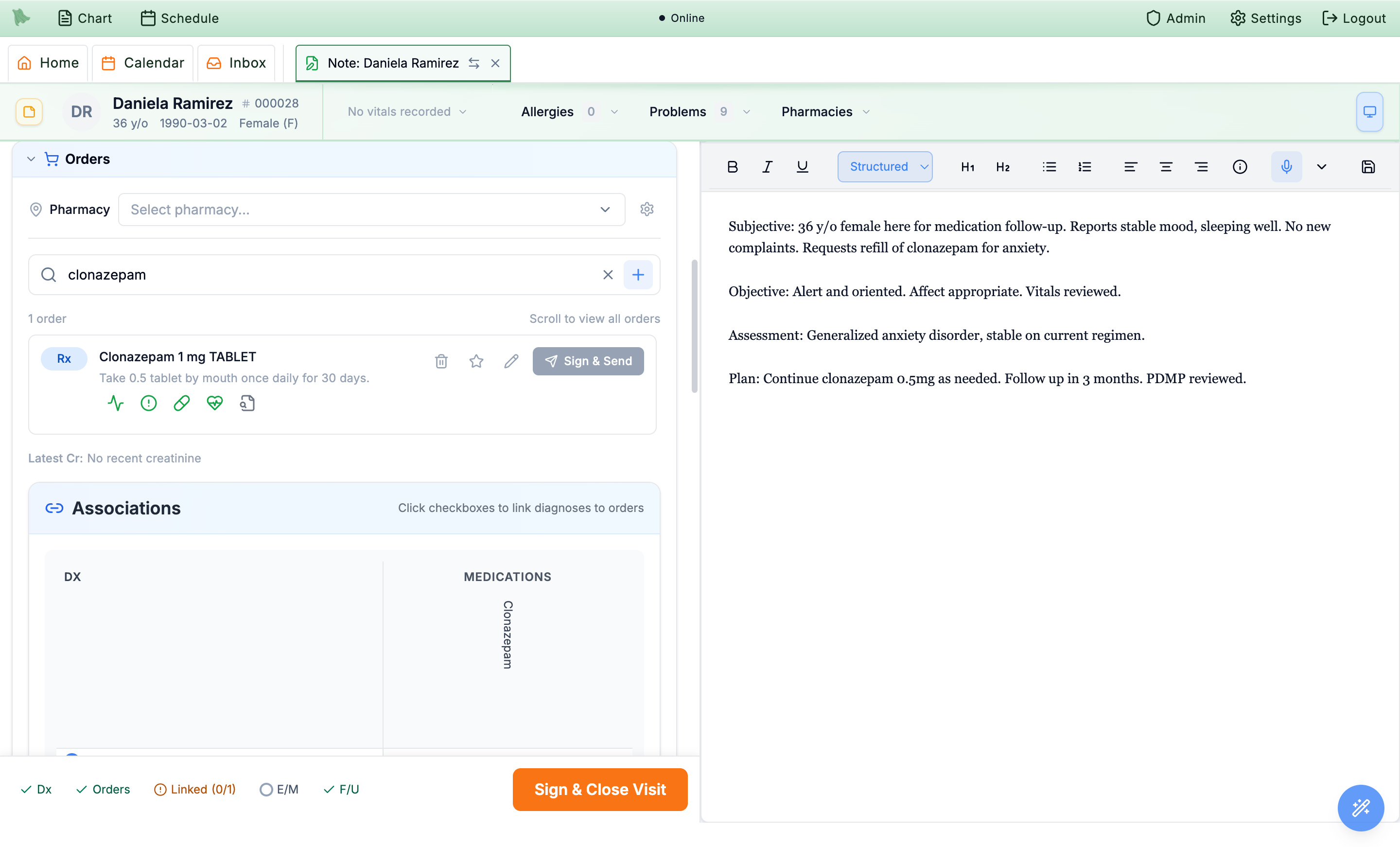
The Orders section is one search box for everything you order at the visit — prescriptions, lab panels, imaging, referrals, screeners, and forms. Pick a destination pharmacy first so prescriptions know where to go.
-
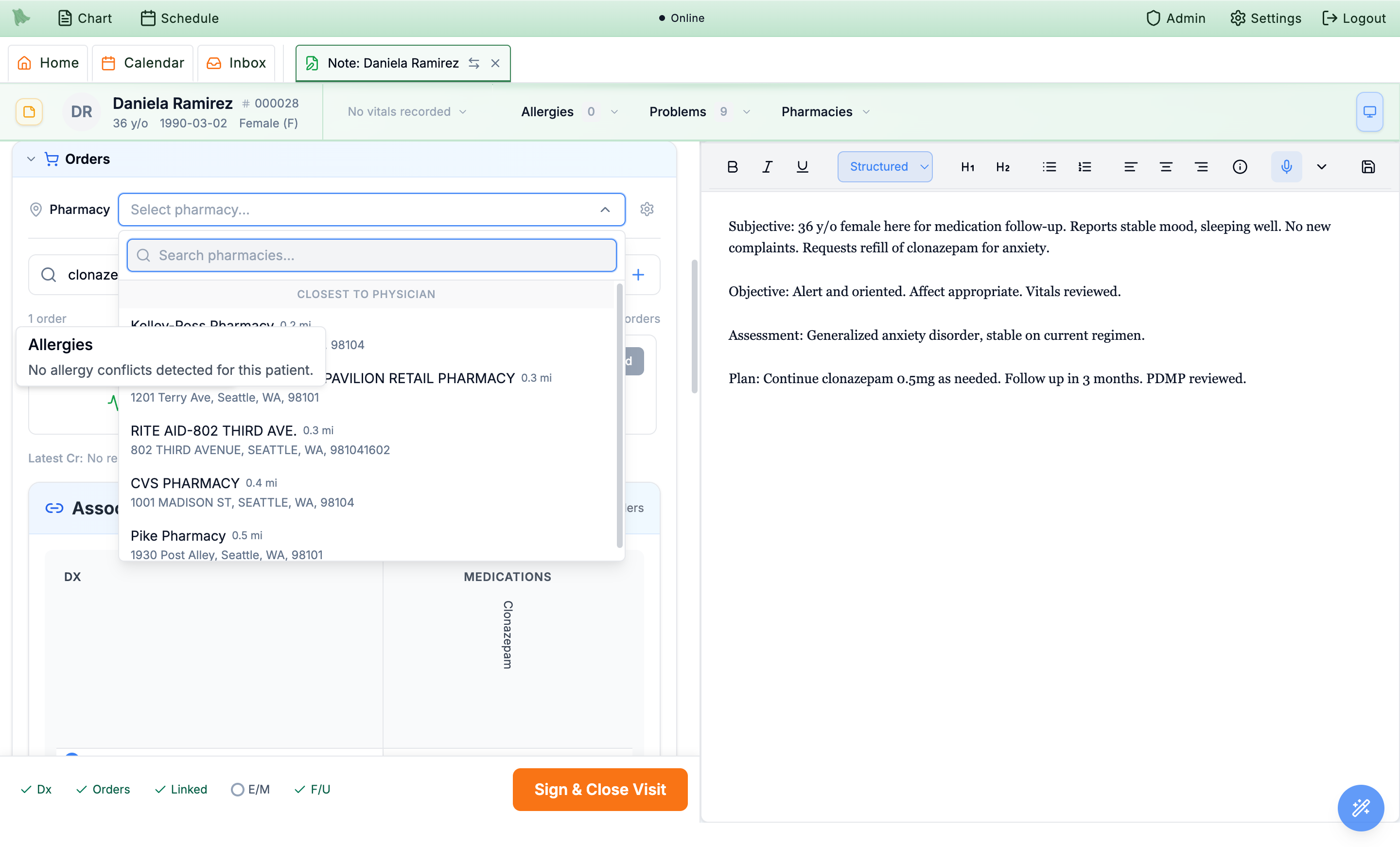
Choose the pharmacy.
Open
Select pharmacy…and the dropdown is grouped, not one flat distance-sorted list:Primary Pharmacyfirst, thenPatient Pharmacies, then up to fiveClosest to Physician, then up to fiveClosest to Patient. A group with nothing in it is left out entirely, so don’t expect all four on every patient — the first two need pharmacies already saved on the chart, andClosest to Patientneeds a usable home address to measure from. On a patient with neither, the dropdown opens onClosest to Physicianalone. Type two or more characters and aSearch Resultsgroup from the wider pharmacy directory appears above those groups. Add or edit pharmacies withManage pharmacies. -
Search and add.
Type into
Search ordersand pressSearch & Addto open the Search Orders window. Filter by tab:all,order sets,medication,lab,imaging,referral,screeners,forms, orfavorites. Theorder setstab only appears when order sets are enabled for your organization — see Order sets. Each result shows its name, brand names, and type; controlled medications are flagged with their schedule (for exampleSchedule: CIV). -
Watch the renal cue.
Latest Crunder the order list surfaces the most recent creatinine so you can dose-adjust without leaving the screen.
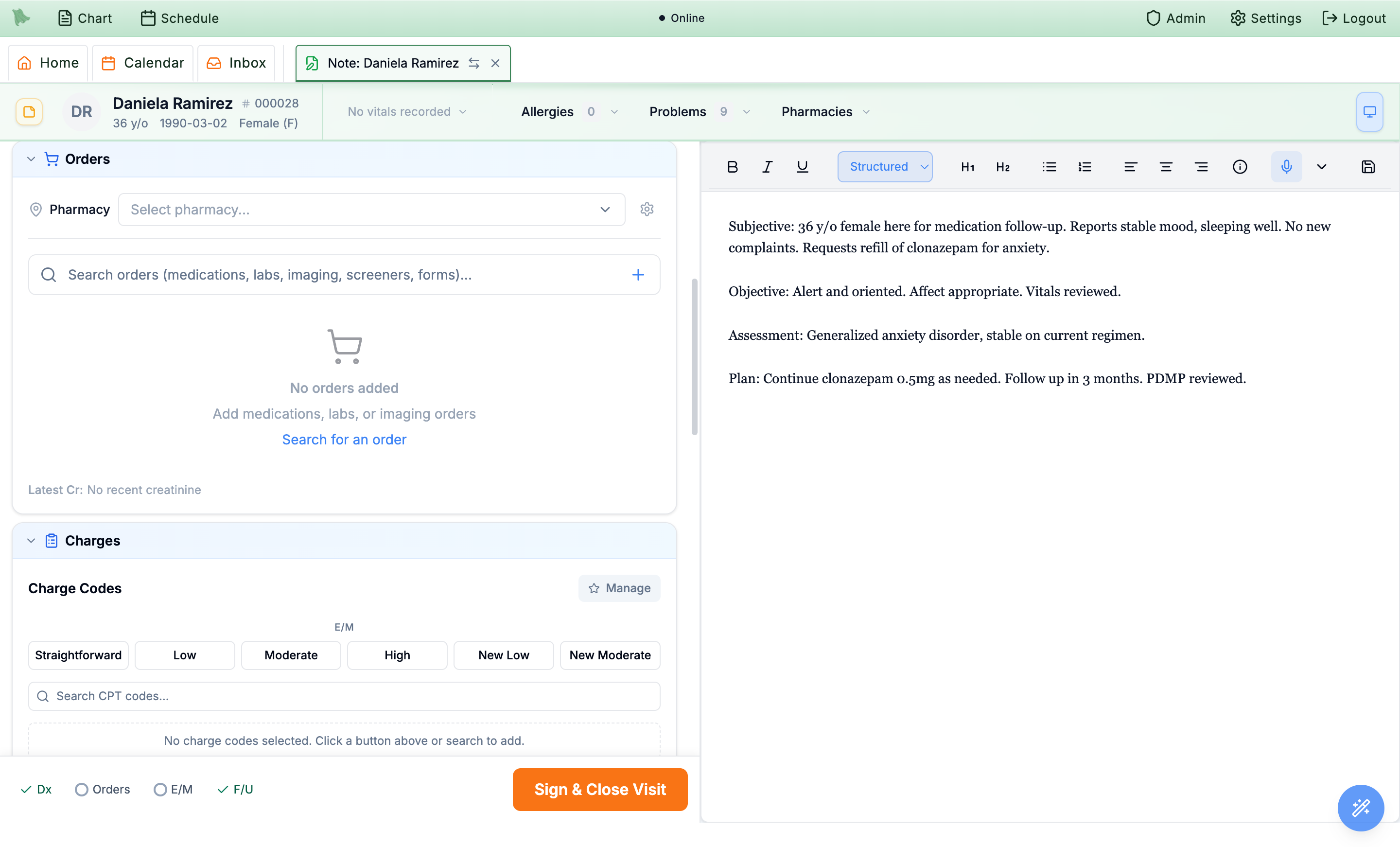
Latest Cr sit right above it.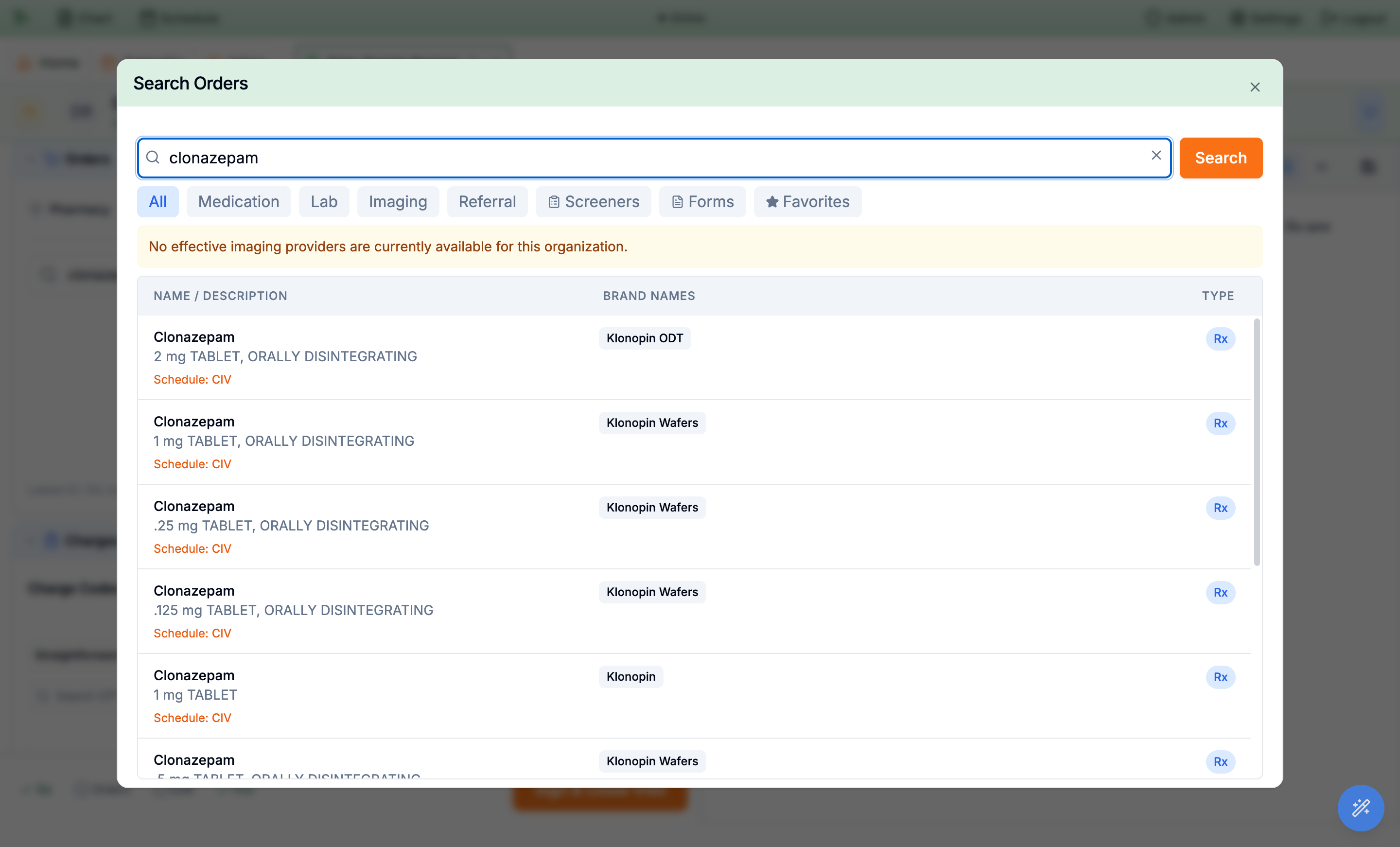
Write a structured prescription
Selecting a medication opens Edit Medication, where you build the sig from structured fields. Hero EMR assembles the directions and a one-click Auto-fill proposes a starting regimen with dosing guidance.
-
Build the sig.
Set
Action,Route,Dose(amount + unit),Frequency,Duration,Dispense(amount + unit), andRefills. A live summary of the directions is assembled from those fields and updates as you go. -
Fill in the as-needed details.
Choosing
As needed (PRN)(or ticking the as-needed box) reveals a free-text reason — “As needed for… (e.g. pain, nausea, anxiety)” — and aMax doses per dayfield. Both fold into the directions the pharmacy receives. -
Check the advisory readouts.
- If the dispense quantity looks implausible for the days’ supply, the dialog shows the implied amount per day so you catch an absurd quantity (1800 tablets, 20 capsules a day) before sending. The same dispense/day summary appears on the order row in the list. It’s advisory and never blocks you.
- For patients under 18 with a recorded weight and a catalog-matched product, a weight-based mg/kg readout appears under the dose fields. It is advisory only — it never edits the order.
-
Let
Auto-fillpropose a regimen.Auto-fillpopulates the structured fields and surfaces a Medication Hero dosing note — e.g. “For anxiety, clonazepam initial adult dose is 0.25–0.5 mg PO daily, may increase to 1 mg daily as needed.” Adjust anything before saving. -
Delay the fill if you need to.
Do not fill until (optional)sends the prescription now but asks the pharmacy to hold the fill until the date you pick. Leave it blank to fill now. -
Set substitution and pharmacy notes.
Toggle
Substitution Allowedand add aNote to Pharmacyif needed, thenSave Changesto drop the order onto the list.
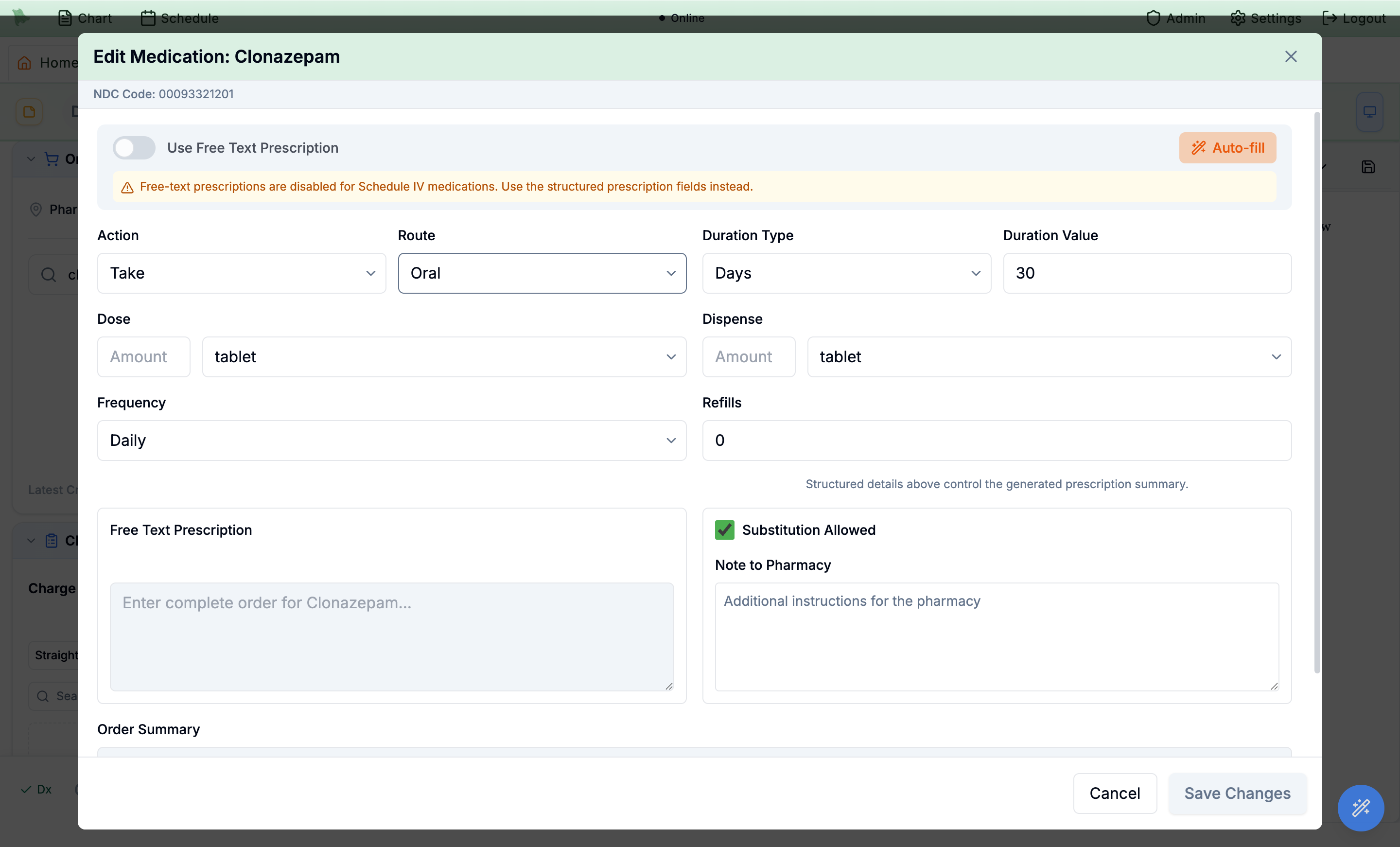
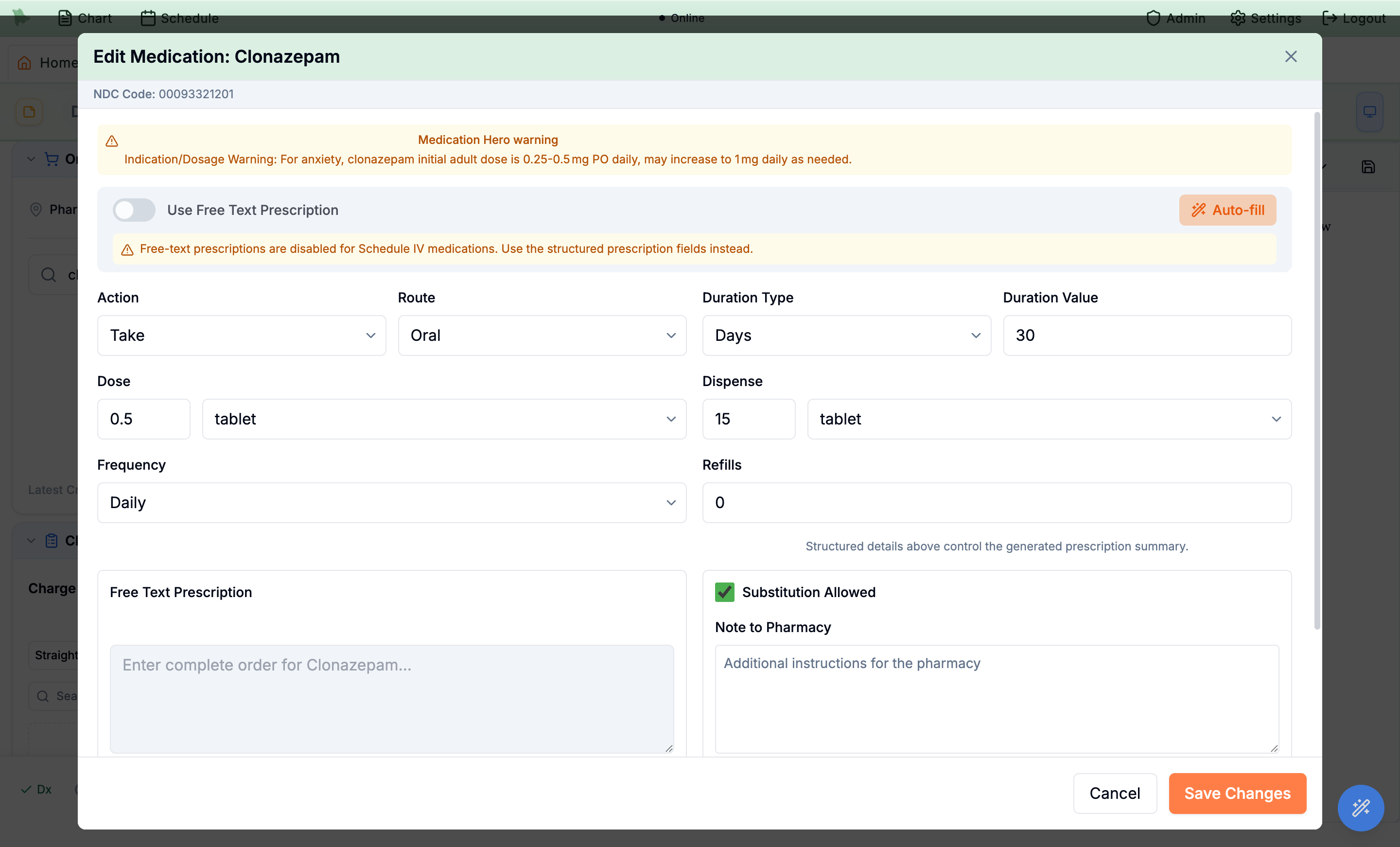
Auto-fill fills the sig and shows indication-specific dosing as a Medication Hero note.Use Free Text Prescription toggle is disabled (“Free-text prescriptions are disabled for Schedule IV medications”), so the sig is always built from discrete fields. Signing them uses the EPCS flow in Signing controlled prescriptions.
Read the medication safety checks
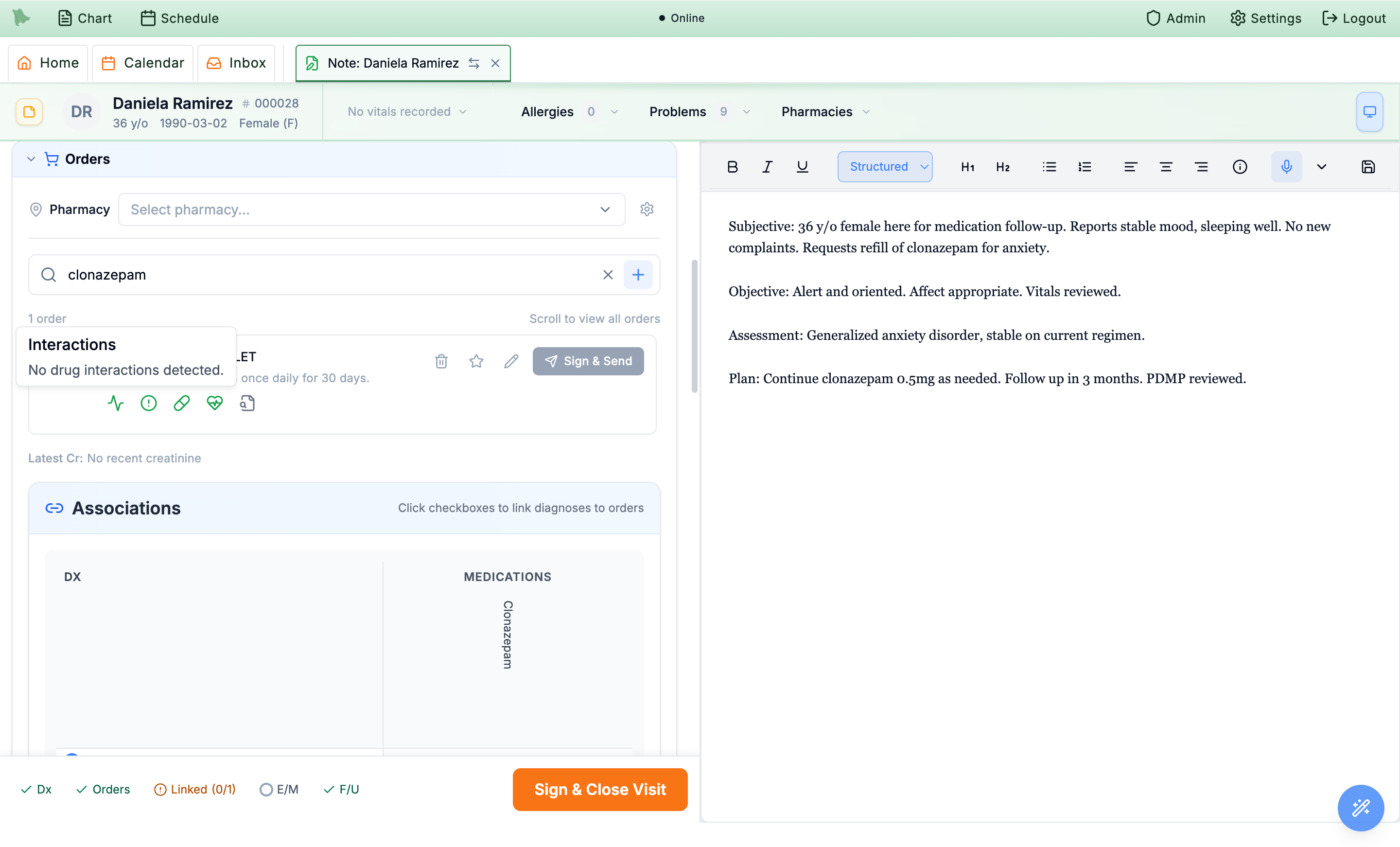
Every medication order carries a row of five Medication Hero checks. Four of them — interactions, allergies, indication/dosage, and black box — run automatically and show green when clear; click any icon for the detail. A red or amber result means review before you sign. The fifth, PDMP, is a status readout only: it stays grey until a check has actually been run, and clicking it just opens its tooltip.
Interactions
Drug–drug interactions against the patient’s active medication list (“No drug interactions detected” when clear).
Allergies
Drug–allergy conflicts against recorded allergies (“No allergy conflicts detected for this patient”).
Indication / Dosage
Standard dosing for the indication, so you can sanity-check the sig at a glance.
Black Box Warning
FDA boxed warnings relevant to this patient and drug.
PDMP
Status of the state Prescription Drug Monitoring Program report. It only carries data for Schedule II–IV medications, and only after you run a check — until then it is grey and reads “PDMP check has not been completed for this patient.” Run the query from Run PDMP in the signing dialog (Signing controlled prescriptions).
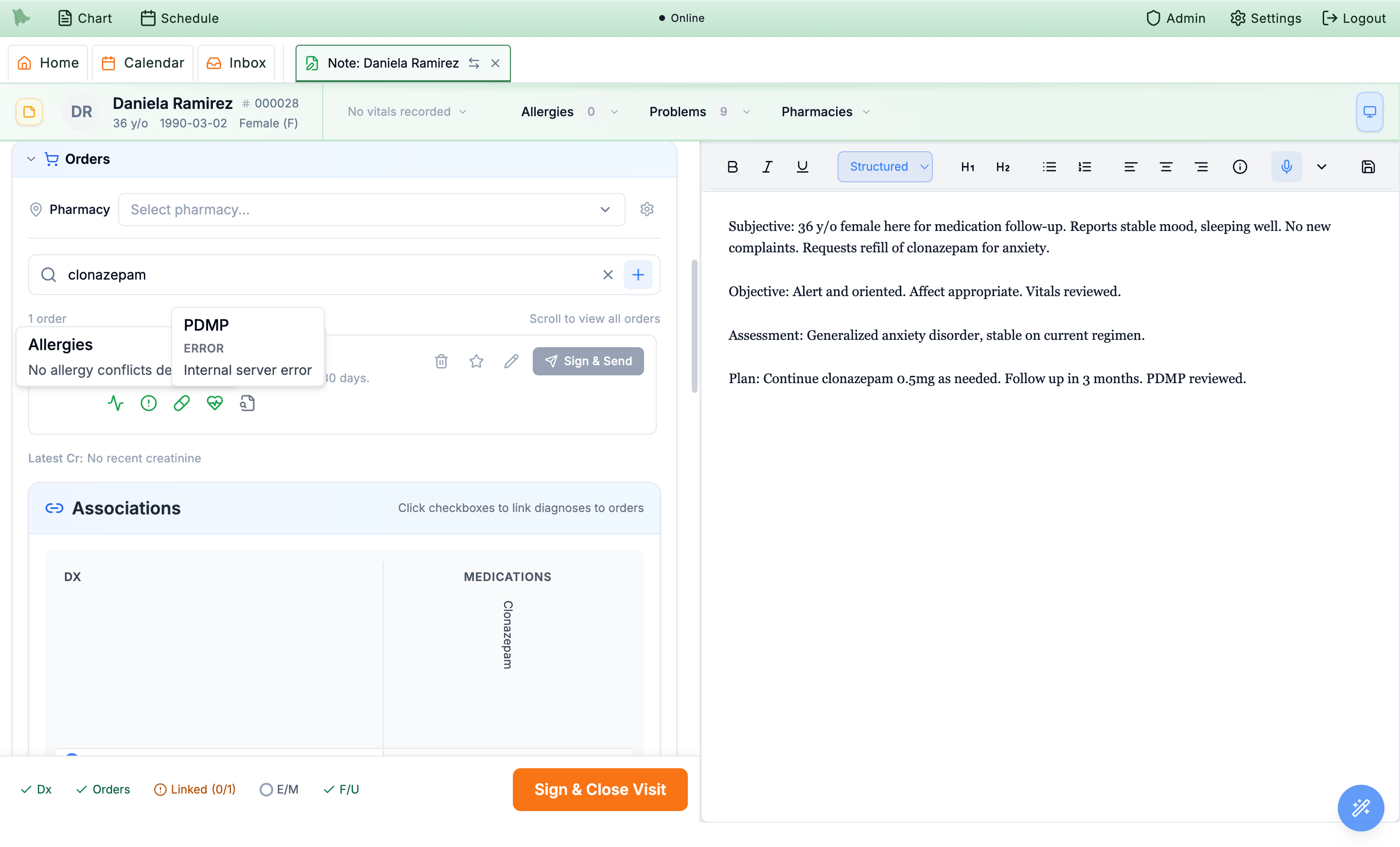
Run PDMP in the Controlled Rx Mobile Approval dialog, and it calls your state’s PMP gateway. Find signup instructions and configure PDMP rules under EPCS enrollment → PDMP. Hero support configures the approved connection credentials after state enrollment; the PDMP tab has no credential-entry field. The icon and the dialog report whatever came back — PDMP not checked, PDMP loading, PDMP available, No PDMP report, PDMP stale, PDMP expired, PDMP error, or PDMP unavailable when no gateway is connected.
Link each order to a diagnosis
Orders should be tied to the diagnosis that justifies them. The Associations grid — diagnoses down the side, orders across the top — lets you check the box where they intersect. Linking supports medical necessity and is required before a prescription can be sent.
- Open the Associations grid. It appears under the order list once you have at least one diagnosis and one order.
-
Check the intersections.
Tick the box where a diagnosis row meets an order column (for example F41.1 × Clonazepam). The footer tracker shows
Linked (0/1)in amber until every order is linked, then flips to a greenLinked.
Sign & Send stays disabled until a pharmacy is chosen and the order is linked.Sign controlled prescriptions (EPCS)
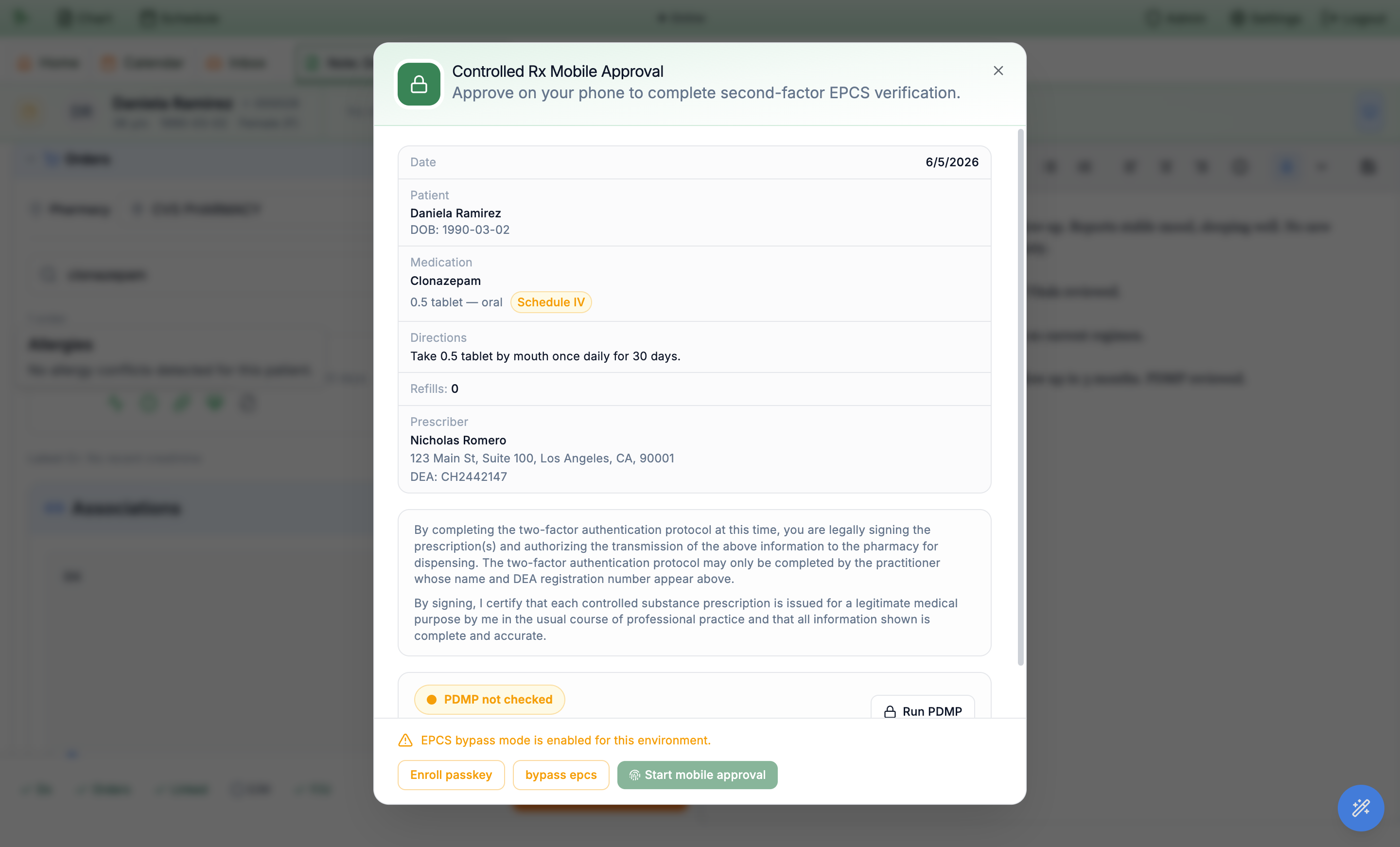
Non-controlled prescriptions send when you press their own Sign & Send, or when you finalize the visit if you haven’t. Controlled substances (Schedule II–V) require EPCS — DEA-regulated two-factor signing — before they can be transmitted. The order’s button always reads Sign & Send; for a controlled drug that is otherwise ready to go, its tooltip adds “(2FA required)”. The button stays disabled until a pharmacy is selected and a diagnosis is linked.
- Select a pharmacy and link the diagnosis. Both are prerequisites; the button’s tooltip tells you what’s still missing (“Cannot send: Select a pharmacy, Associate a diagnosis with this medication”).
-
Click
Sign & Send. The Controlled Rx Mobile Approval dialog opens. It restates the full prescription — patient and DOB, medication with its schedule, directions, refills, and the prescriber’s name, service address, and DEA number — alongside the legal signing attestation. - Confirm the DEA prescribing location. Hero defaults the DEA and service address to the registration whose state exactly matches the patient’s recorded address. Use the DEA-location dropdown for a manual change when needed. If the patient has no state or no registration matches, the dialog flags the issue and requires you to select a location before signing can continue. A manual selection for a different state remains visible as a warning so you can confirm it deliberately.
-
Check the PDMP.
The dialog shows a
PDMP not checkedindicator with aRun PDMPbutton. This is the only place the state database is actually queried. Where a PDMP check is required for this drug’s schedule and your state,Start mobile approvalstays disabled untilRun PDMPcomes back with a usable report — a stale or expired result blocks it too, and the reason is shown beneath the indicator. -
Complete two-factor approval.
Choose
Start mobile approvalto push the request to your registered phone, orEnroll passkeyif you haven’t set up a second factor. Completing 2FA signs the prescription and authorizes transmission to the pharmacy.
Need help? Email support@heroemr.com.