Faxing
Paper still arrives — here's the workflow: triage the fax inbox, preview pages, link the patient and import into the chart, handle faxed orders, and read fax statuses.
Faxing
Paper still arrives — here's the workflow: triage the fax inbox, preview pages, link the patient and import into the chart, handle faxed orders, and read fax statuses.
Work the Faxes inbox
Hero EMR turns the practice fax line into a triaged work queue. Your SRFax inbox is polled automatically, and every inbound fax is read by AI — category, urgency, patient identifiers, sender, and a one-line summary — then routed to the right person’s Faxes view inside the Inbox. Instead of a stack of pages, you get a personal list of faxes that are already classified and, when the match is confident, already linked to the patient.
-
Open the Faxes view.
Click the
Inboxtab in the top tab bar, then pickFaxes(the printer icon) in the left sidebar — it carries an unread-count badge. TheFaxestile on the Home dashboard deep-links to the same view (see A tour of the Inbox). Admins and physicians always see this view; staff see it when they hold an inbox permission such as Open fax inbox items and imported records. - Let faxes arrive on their own. Hero EMR pulls new faxes from SRFax automatically (every 15 minutes by default) for every user with active SRFax credentials — set up under SRFax integration. Each new fax is downloaded, AI-triaged, matched against your patients, and routed.
- Understand where each fax lands. Routing destinations are configured for your practice as part of fax setup. Clinician-facing faxes — lab and imaging results, consultation notes, refill requests, prior authorizations, referral responses — go to the responsible clinician (the physician on the related encounter, or the patient’s most recent one). Inbound referrals go to the referral coordinator; patient records, insurance documents, and general correspondence go to the matching staff queues. A fax the AI can’t classify, or one that needs a patient but has no confident match, lands in the manual-review assignee’s queue for a human decision.
-
Read and manage the list.
Each row shows the AI summary as its subject, the sender, and a relative time; unread rows are bold. The action bar offers
Mark as complete,Mark as unread,Search / Filters(text search, 24-hour/7-day/1-month windows, and a patient filter), sorting byMost Recent,Unread First, orFlagged First(the last is shared with the other Inbox views and does nothing here, since fax items can’t be flagged), aShow completed messagestoggle, andRefresh messages.Flag messageis intentionally unavailable for fax items.
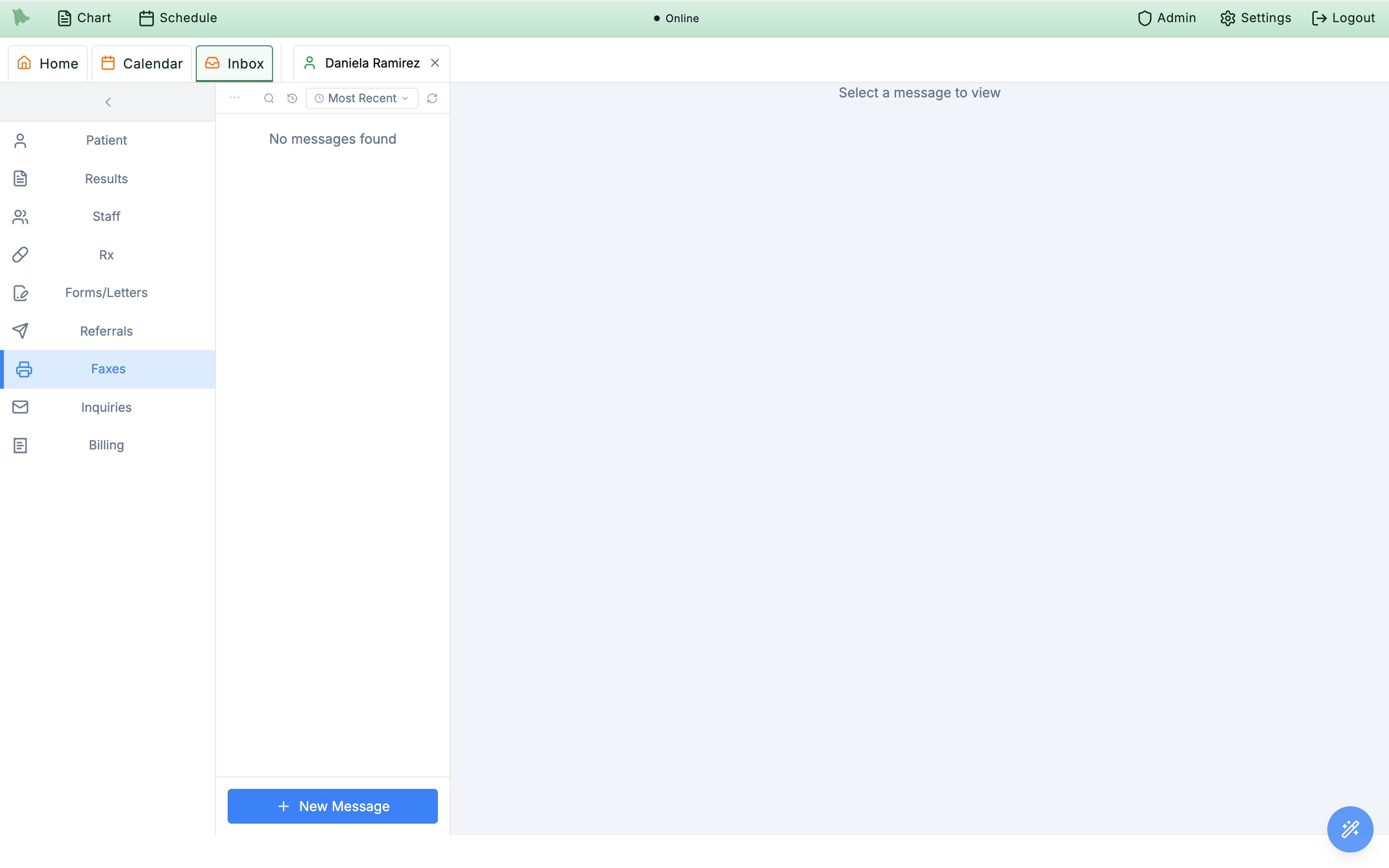
Faxes view in the Inbox — a clear queue. New faxes appear here automatically as they’re pulled from SRFax and triaged.Preview a fax and its attachments
Selecting a fax opens its detail pane, headed Fax Inbox. The pane summarizes what arrived — sender, time, page count, and the AI’s summary — and gives you a full-screen viewer for the pages themselves, so you can read the document without downloading anything.
-
Select the fax in the list.
Opening it marks it read automatically; use
Mark as unreadin the action bar to revert that. -
Scan the info card.
It shows
From(the sender’s fax number or caller ID),Received(displayed in your local time), andPages. If the AI produced a summary, it appears just beneath. While details load, the pane reads “Loading fax details…” -
Open the pages with
View fax. The button (eye icon, brieflyOpening…) opens the first attachment in the full-screen document viewer, titled with the file name orOriginal fax. Keyboard shortcuts: R rotates, + and - zoom, 0 refits the page, and the arrow keys plus Home / End move through a multi-page fax. Fullscreen has no shortcut — use the expand button in the viewer, then Esc to leave fullscreen (Esc again closes the viewer). -
Open individual attachments.
The
Attachmentssection lists every file with its name, type, and size, each with its ownViewbutton. If SRFax delivered nothing, it reads “No attachments were provided with this fax.”
Link a patient and import the fax into the chart
When triage matches the patient exactly (name plus date of birth, or MRN), the fax arrives already linked. For everything else, one button does the whole job: Link patient & import picks the patient and files the pages into their chart in a single step — there is no separate import action to remember.
-
Click
Link patient & import. It opens the standard patient search. Picking a patient links the fax and immediately queues the chart import (the button showsLinking & importing…). A patient link is required — the import is refused otherwise with “Link a patient before importing this fax”. - Let the link do its housekeeping. Your choice is recorded as a manual match, routing re-runs so the fax lands with the right clinician, and every action is written to the fax audit log.
-
Watch the
Importsection.Chart import:reportsNot started, queued, already imported, or error (with the failure message printed beneath), updating on its own as the background job finishes. Importing the same fax twice is harmless — it simply reports already imported. -
Find the document in the chart.
The fax is filed in the patient’s Media tab as a document group named from the AI classification (falling back to
Fax Document), noted Imported from inbound fax. It runs through the same pipeline as automated media uploads, so parsed labs, medications, and vitals flow into the same import review. -
Close out the entry.
Optionally add a handoff note in
Completion Note(“Optional note for other staff or audit trail…”) and clickComplete(brieflyCompleting…) once the fax has been handled.
Handle faxed orders and refill requests
Pharmacy refill and medication-authorization faxes are classified as refill requests and routed straight to the responsible clinician’s Faxes view. Triage extracts the medication name, the pharmacy’s name and phone, and the refills requested into the entry’s summary — so you can size up the request before opening a single page. The fax gives you the triaged facts; the prescribing decision stays yours.
- Confirm the patient link. Refill faxes require a patient match — one without a confident match goes to manual review instead, where linking it (11.3) puts it back on the right clinician’s queue.
- Verify against the chart. Open the fax, check the request against the patient’s medication list and recent visits, and import the pages if they belong in the record.
- Act through your normal prescribing tools. Approve by writing the prescription in the prescription builder or a standalone order, or call or fax the pharmacy back. The renewal decision workflow itself — approve, reject, dose changes — lives in Refill requests.
-
Know where electronic refills live.
Renewal requests that arrive electronically through Surescripts appear in the Rx view, not Faxes — that view also lists the pharmacy’s
Faxnumber for callback replies. And if you’ve written your plan as free text in a patient message, theExtract orderswand in the Patient view can turn your own sent, encounter-linked replies into structured order drafts — see AI in the Inbox.
Fax statuses, completion, and what to do when things fail
Every fax tells you where it stands. Inbound entries move from unread to read to completed; chart imports report their own progress in the detail pane; and outbound referral faxes surface their result as status on the referral itself. Here is how to read each one — and how to recover when a send fails or an expected fax hasn’t appeared.
| Inbound state | What it means |
|---|---|
| Unread | A new fax awaiting review — the row is bold. Opening it marks it read; Mark as unread reverts. |
| Read | Opened but not yet closed out. It stays in your list until you complete it. |
| Completed | Handled — via the pane’s Complete button (with an optional Completion Note) or the action bar’s Mark as complete. Completed faxes hide from the list until you toggle Show completed messages. A failure surfaces the toast “Could not complete fax”. |
Chart import: status | What it means |
|---|---|
Not started | A patient is linked but no import has been queued yet. |
| queued | The background import is running; the status updates on its own when it finishes. |
| already imported | The fax is filed in the chart’s Media tab. Re-importing reports this same status — duplicates are prevented. |
| error | The import failed; the error message prints beneath the status. Fix the cause and import again. |
-
Read outbound results on the referral.
Day-to-day outbound faxing happens through referral letters, which Hero EMR renders to PDF and queues to the receiving provider’s fax number. On success the referral row shows a green
Sentchip with itsReferral ID:, and the encounter card in Chart Review shows the status badge with a via fax note (see referral tracking). - Recover from a failed send. A failure shows the toast “Failed to send referral” and flips the referral to a failed status badge, with the error logged in the referral’s audit trail. There is no automatic retry — re-send the referral yourself once the cause (a wrong fax number, missing SRFax credentials) is fixed; failed referrals accept a re-send.
-
Don’t double-send.
If an identical fax is still mid-send with an ambiguous outcome, a duplicate attempt is blocked (“Reconcile the existing fax before retrying.”). Wait for the first attempt to resolve to
Sentor failed rather than clicking send again. -
Missing an inbound fax?
The automatic sync retries itself, and the
Sync inboxbutton (circular arrow in the fax detail header) forces an immediate pull — it also backfills pages for faxes that arrived before their document finished downloading. It needs your own SRFax credentials; otherwise it errors with “SRFax credentials are not configured for your account. Go to Admin > External Providers > SRFax and complete setup.” (see SRFax integration). If sync is healthy and the fax still isn’t there, it likely routed to a colleague — your list shows only your own assignments.
Sent chip and Referral ID: in Order Entry, the status badge on the encounter card, and the referral audit trail. If you need to confirm a fax went out, check the referral, not the Inbox.
Need help? Email support@heroemr.com.