The referring-provider portal
The other direction of referrals — outside providers sending patients to you. How they enroll and submit through your clinic-branded portal, how your team triages each submission into a chart, and how Hero keeps the referrer in the loop with secure, PHI-free status updates.
The referring-provider portal
The other direction of referrals — outside providers sending patients to you. How they enroll and submit through your clinic-branded portal, how your team triages each submission into a chart, and how Hero keeps the referrer in the loop with secure, PHI-free status updates.
The referring-provider portal
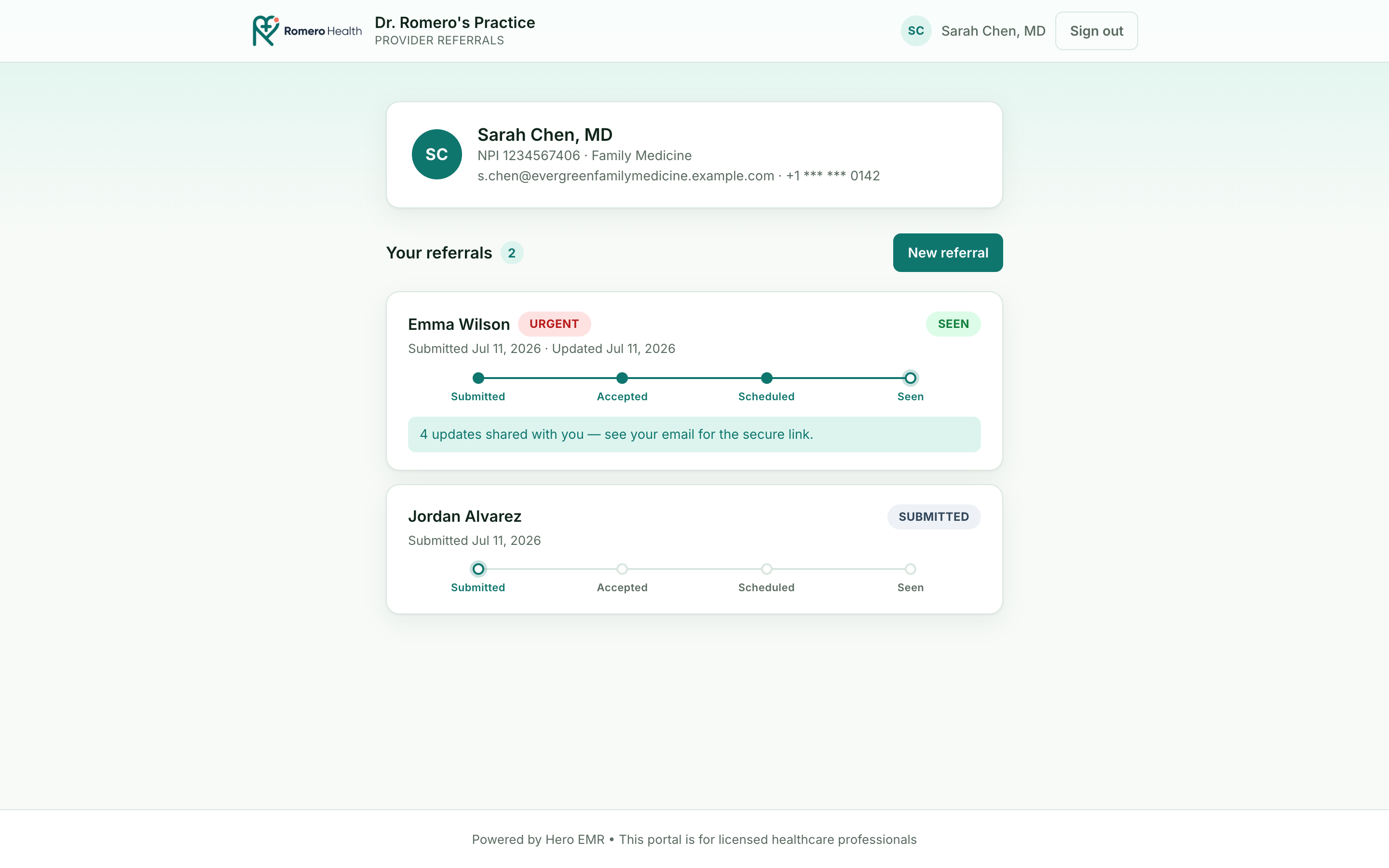
The rest of this part is about referrals you send. This page is the other direction: referrals that come to you. When a community physician wants to send you a patient, the old path is a fax that lands in a pile and a loop that quietly dies — the referrer never hears whether the patient was seen. The referring-provider portal replaces that fax with a self-serve, clinic-branded web portal. Outside providers find themselves in the national registry, verify once by text, and submit a referral with almost no typing. Your front desk triages each submission straight into a chart, and from then on Hero automatically emails the referrer a private “you have an update” note each time the patient moves forward — accepted, scheduled, seen — closing the loop without a single phone call.
The whole feature is five surfaces that fit together:
- The portal — where outside providers enroll, sign in, and submit referrals. It lives at one address per clinic,
https://refer.heroemr.com/?org=<your-organization-id>, which you share on your website or a referral pad. Theorgvalue is your organization’s Hero ID; theAdmin → Referral Portaldialog does not display or copy the link for you, so if you don’t already have your clinic’s exact address, ask support@heroemr.com for it. - Inbound Referrals in the Inbox — where your staff triage each submission: accept it (which resolves the chart) or decline it.
- Admin → Referral Portal — where you turn it on, choose how updates go out, and verify or block individual referrers.
- The Referral Communications card on the patient’s chart — where the care team watches the loop and sends personal notes back to the referrer.
- The secure update emails and status page — the PHI-free notifications that keep the referrer in the loop.
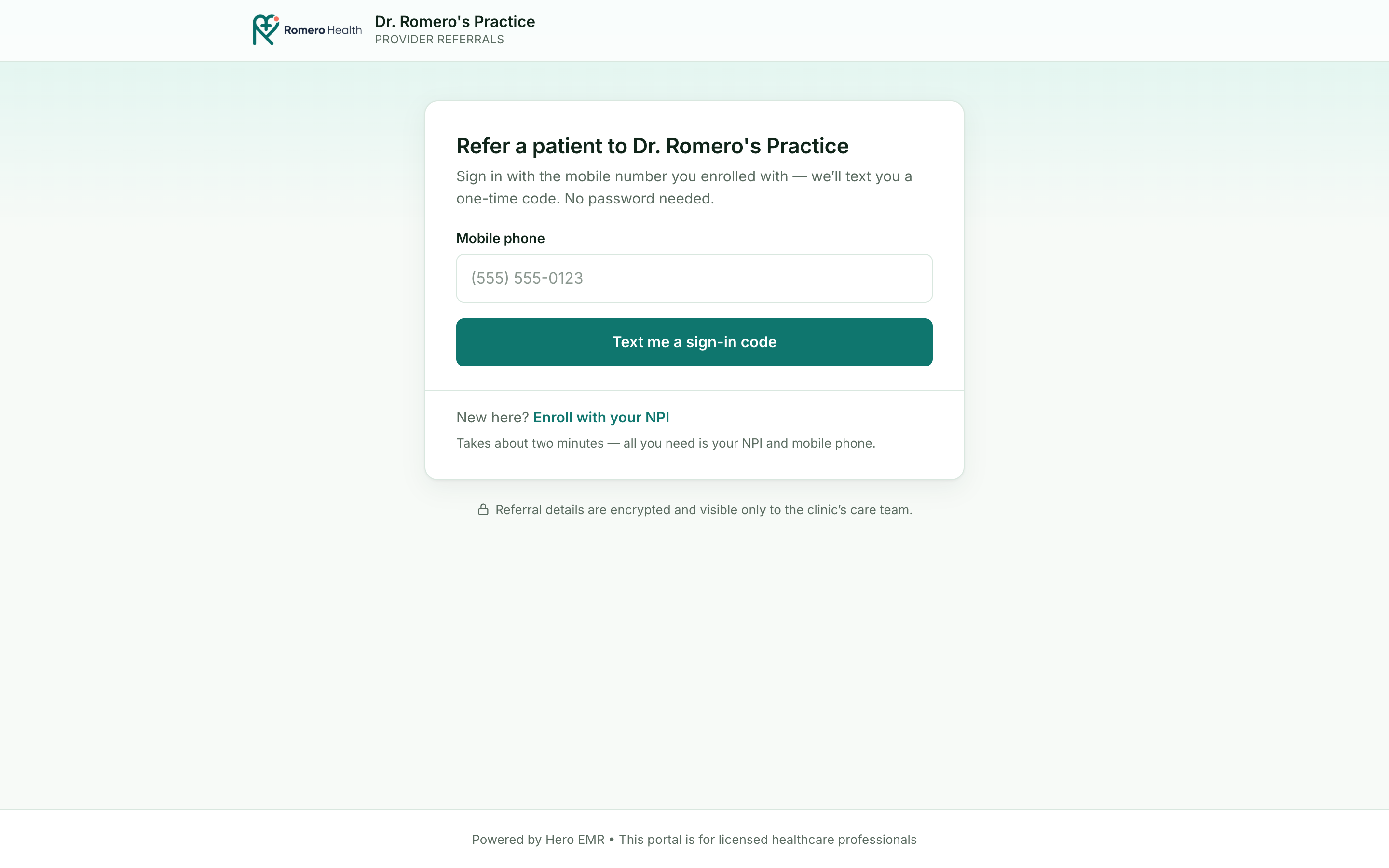
org in the address.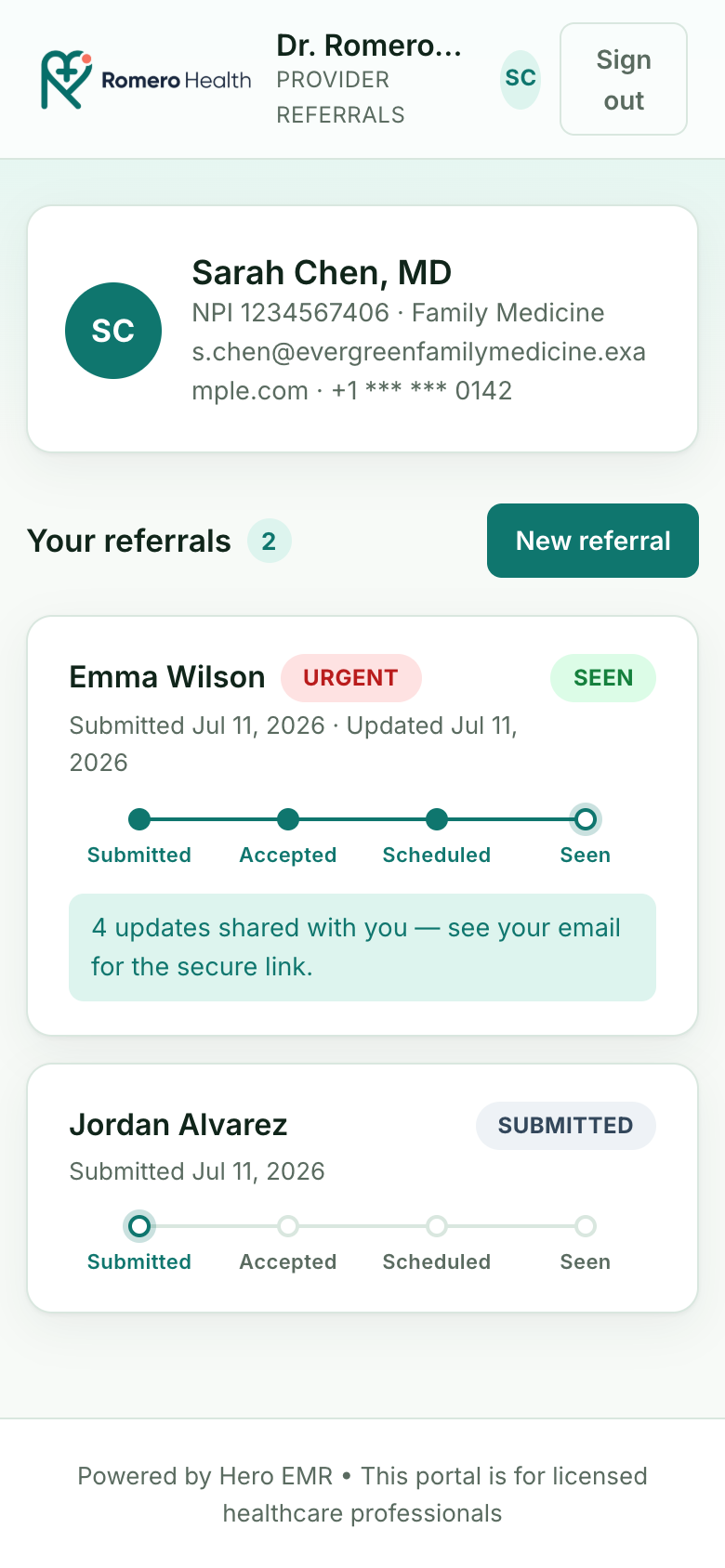
Admin → Referral Portal (see 13.11). Enable it, decide your update policy, then share the link.
Enrolling: NPI, a text code, and this device
Enrollment is built to take about two minutes and to need nothing a clinician doesn’t already have — no username, no password, no account approval email. A first-time referrer taps Enroll with your NPI and moves through four short steps: Find yourself → Confirm → Contact → Verify.
-
Find yourself in the registry.
The referrer either enters their 10-digit NPI directly (
I know my NPI) or searches the public NPPES registry by name (Search by name— last name required, first name and state optional). Hero returns live registry matches asThis is mecards showing each provider’s taxonomy and city, so they can pick themselves out of a list of namesakes. -
Confirm the prefilled details.
Choosing a card prefills name, credential, specialty, and NPI from the registry. Everything is editable before continuing. If a provider genuinely isn’t in NPPES,
Enter your details manuallylets them type it in. - Add contact details. The referrer supplies the mobile number they want sign-in codes and update notifications sent to, plus an email for the secure-link notifications.
- Verify by text. Hero texts a one-time code to that mobile number; entering it proves the number and finishes enrollment. From then on there is no password — signing in later means entering the mobile number and the texted code.
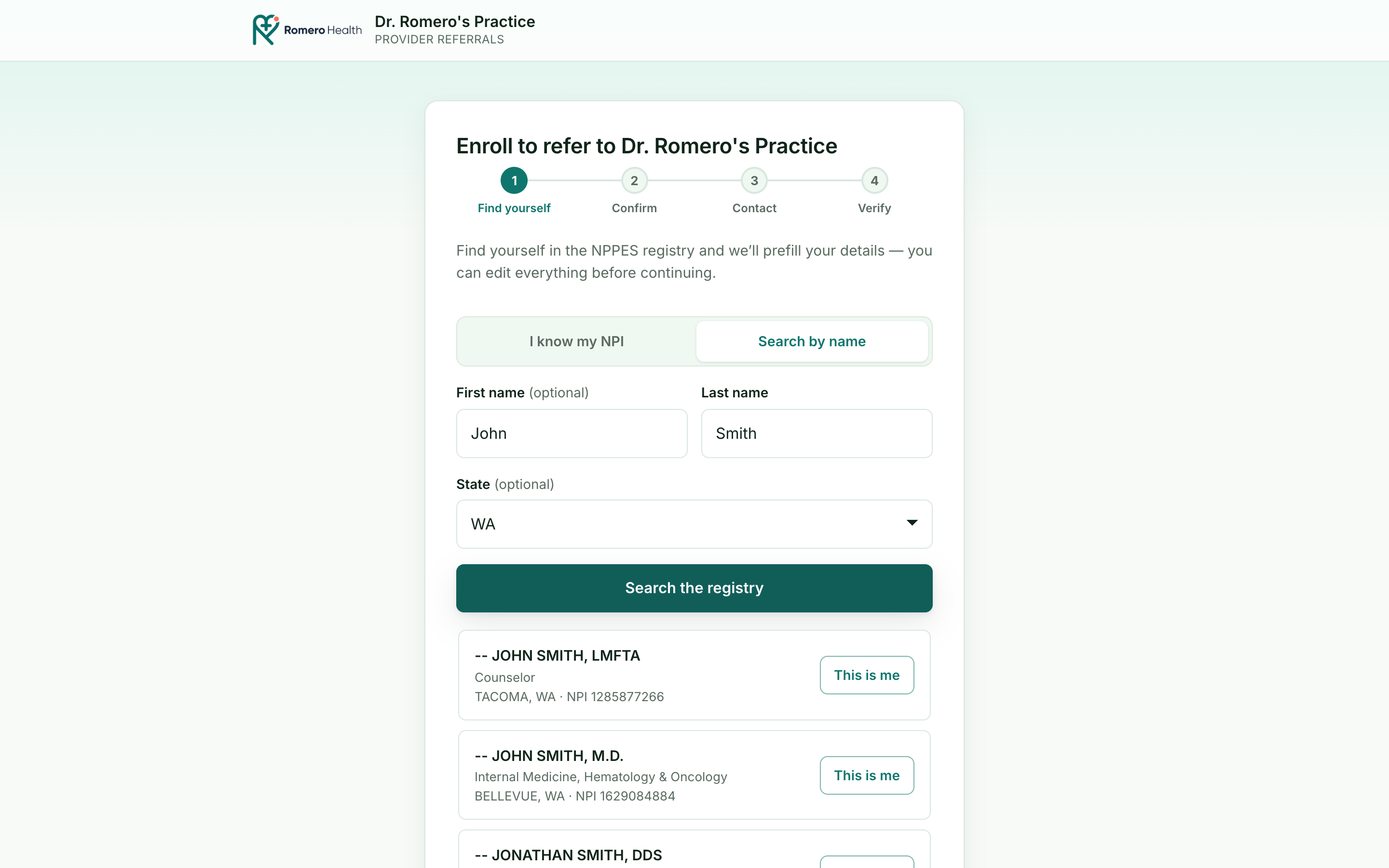
This is me. The clinic never keys in the referrer’s credentials; the registry does.Because sign-in is a texted code rather than a password, a returning referrer would normally re-enter a code every visit. To avoid that, the portal can remember this device: once verified, the referrer’s browser holds a trusted-device credential, and future visits resume straight to their referrals with no code at all. The credential is scoped to that one browser and that one clinic and silently rotates on every use, so a stale copy can’t be replayed.
Submitting a referral
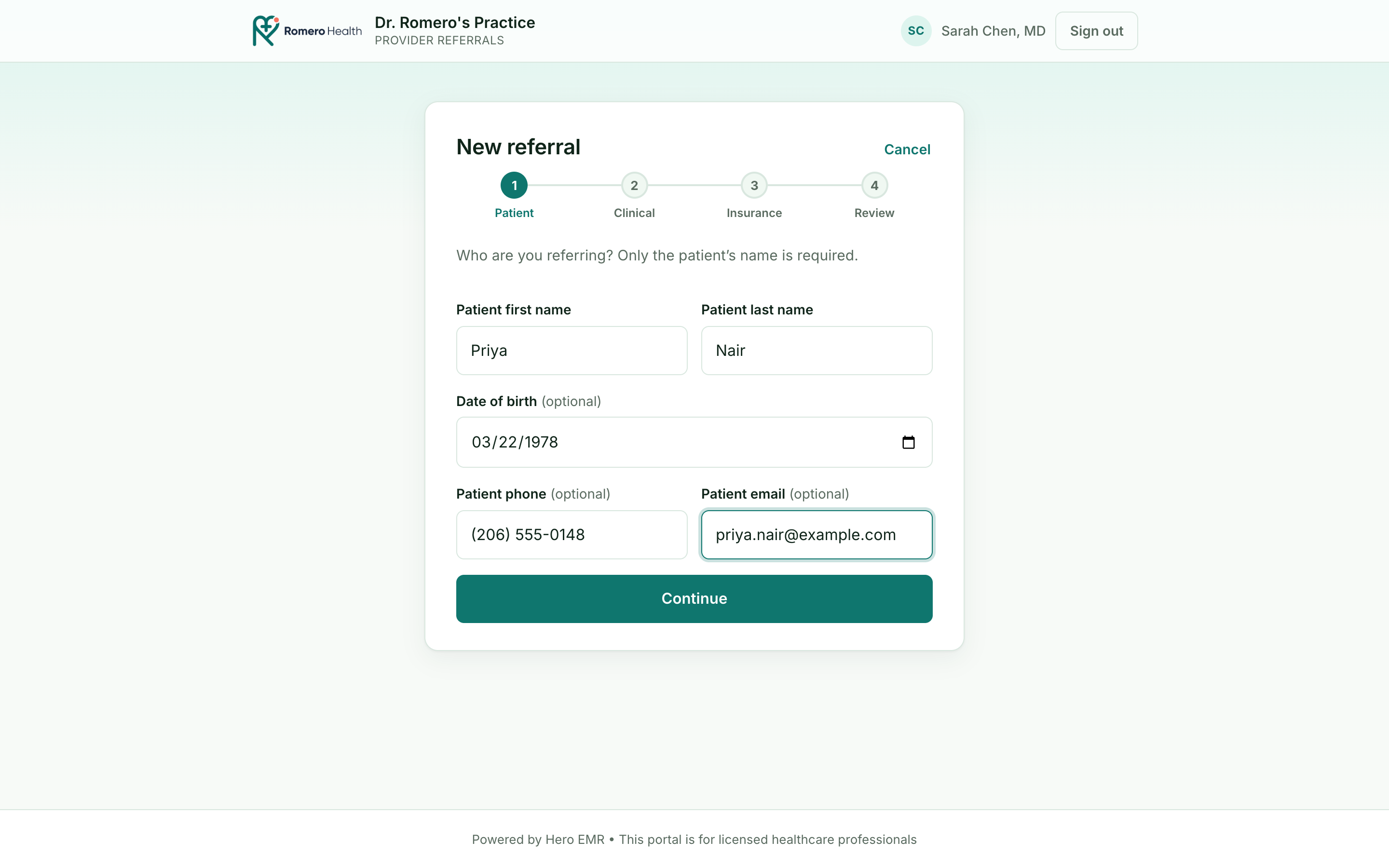
The whole point is to make sending you a patient faster than a fax, so the form asks for the bare minimum. A referral moves through four steps — Patient → Clinical → Insurance → Review — and only four fields are genuinely required: the patient’s first name, last name, date of birth, and phone number.
-
Patient.
Patient first name,Patient last name,Date of birth, andPatient phoneare all required — the step says so plainly: “Who are you referring? Name, date of birth, and phone are required so the clinic can match records and reach the patient.” Date of birth is what matches the referral to a chart (Hero matches on last name + date of birth), and the phone number is your guarantee you can reach the patient.SexandPatient emailare optional — an email is what later lets you send the patient their portal invitation automatically. If the date of birth makes the patient under 18, aParent / guardian (patient is under 18)block appears with optional guardian name, phone, and email. -
Clinical.
The reason for referral and any free-text notes, plus an urgency flag when the patient needs to be seen quickly (urgent referrals are badged
URGENTin your queue). -
Insurance.
The whole step is skippable — but if the referrer starts filling it in, the insurer has to be picked from your clinic’s payer list rather than typed free-hand (a typed name with nothing selected blocks
Reviewwith “Select the insurance company from the list…, or clear the insurance fields”). Member ID and group number are optional. If the patient is a dependent rather than the policyholder, the policyholder’s first name, last name, and date of birth become required. -
Review & submit.
A last look, then submit. The referral appears immediately in the referrer’s own list as
Submittedand drops into your Inbound Referrals queue for triage. If your clinic has Live insurance verification switched on (see 13.11) and the referrer supplied a payer and member ID, Hero runs the eligibility check as the referral is sent and the confirmation screen carries anInsurance verificationcard readingActive coverage,No active coverage, orNot verified— the same result your staff see on the triage pane. None of those outcomes stops the referral: it is sent either way.
Triaging inbound referrals
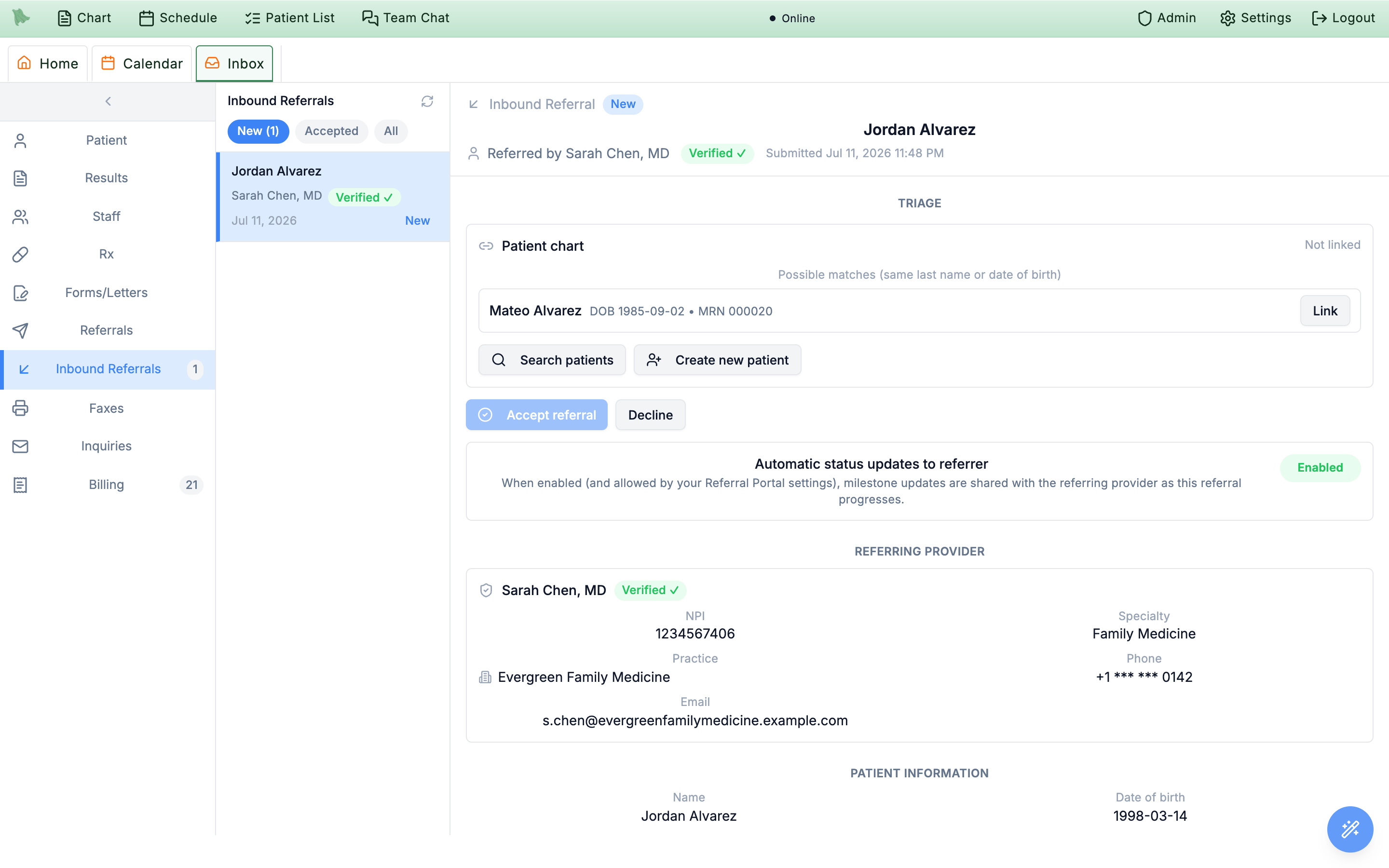
Every submission lands in one place: Inbox → Inbound Referrals. This is where a referral becomes a patient. The queue lists each incoming referral with the referrer’s identity and a verification badge, the patient details that were provided, and the clinical reason. Selecting one opens a triage pane with a single decision to make: accept or decline. There is no chart-search or link step — accepting is what resolves the chart.
-
Read how the chart will resolve.
The
Patient chartbox at the top of the Triage section tells you what accepting will do, based strictly on an exact last name + date of birth match against your existing charts. One match reads Matches existing chart (last name + DOB) and “Accepting links this chart automatically.” No match reads No existing chart matches this last name + DOB and “Accepting creates the chart…” Several matches read N existing charts share this last name + DOB — you’ll choose one when accepting. Nothing here is a control you operate; it is a preview of whatAcceptwill do. -
Check who sent it.
The referrer’s name, NPI, and a verified / unverified badge are shown right on the referral, so staff can see at a glance whether this is a known, verified referrer before acting (verification is managed in Admin — see 13.11). An
Updates offbadge here means the referrer opted out of status updates entirely. -
Accept or decline.
Accept referral…opens the accept dialog described below; finishing it links or creates the chart, records your scheduling request, and — if updates are on — sends the referrer their first “accepted” notification.Declinecloses the referral out. From there the patient is booked and seen through your normal scheduling and encounter flow.
Inside the Accept referral dialog
Accepting is a short form rather than a single click, because it is the moment the chart, the scheduling request, and the patient outreach are all decided at once:
- Patient chart. Repeats what will happen. When several charts share the last name and date of birth, this is where you pick the right one with a radio button — the
Accept referralbutton stays disabled until you do. - New chart details. Shown only when a chart is being created.
Date of birth,Sex, andPhoneare required, andEmailis what makes the portal invite possible. A patient under 18 adds a required guardian first and last name (“This patient is a minor — a parent/guardian is required.”). - Scheduling request. Pick a
Physicianand then aVisit type(only online-bookable visit types appear, and the visit type list stays disabled until a physician is chosen). This is advisory — it tells the patient what to book — and booking any visit still advances the referral to Scheduled. - Invite the patient automatically. Checked by default. It queues a portal invite plus an appointment request, sent by text and/or email to the patient — or to the guardian for a minor — using the contact details on the chart. Uncheck it if your front desk would rather call. When a new chart is being created with neither a phone nor an email filled in, the checkbox is disabled and reads “Add a phone or email to send the automatic invite.”
Turning it on and setting the rules
Open the settings from the toolbar Admin menu → Referral Portal. The dialog has two halves — the org-wide switches at the top and the referrer directory below.
Enable & update policy
The Referring provider portal switch turns the portal on for your organization. Below it sits the single most important choice, the update mode (Automatic or Manual), the three Automatic milestone notifications checkboxes that decide which moments generate an update, a gate that ties updates to verification, and a live insurance-verification switch.
| Setting | What it controls |
|---|---|
| Automatic | Milestone updates are emailed to referrers as the referral progresses. The hands-off default: the loop closes itself. |
| Manual | Updates are queued as pending release; staff review and release each one from the chart’s Referral Communications card before anything reaches the referrer. Choose this when you want a human to approve every outbound update. |
| Referral accepted | Notify the referrer when your team accepts the referral. Automatic mode only. |
| Visit scheduled | Notify the referrer when the first visit is booked for the patient. Automatic mode only. |
| Patient seen | Notify the referrer after the visit note is signed. Automatic mode only. |
| Automatic updates require verified referrers | When on, only referrers you’ve marked Verified get automatic updates — an unverified referrer’s updates queue as pending release instead. Turn it off to let every enrolled referrer receive updates automatically. |
| Live insurance verification | Off by default. When a referral arrives with an insurer picked from your payer list, Hero runs an eligibility check through your clearinghouse (Office Ally, with Stedi as fallback) at submit time and shows whether coverage is active — to the referrer on their confirmation screen and to your staff on the triage pane. Requires clearinghouse credentials configured for the organization. |
Automatic milestone notifications, and switching the org to Manual greys all three out — the heading adds “(unavailable in manual mode — staff release each update)”. In Manual mode nothing goes out on its own; staff release every update by hand from the chart’s Referral Communications card.
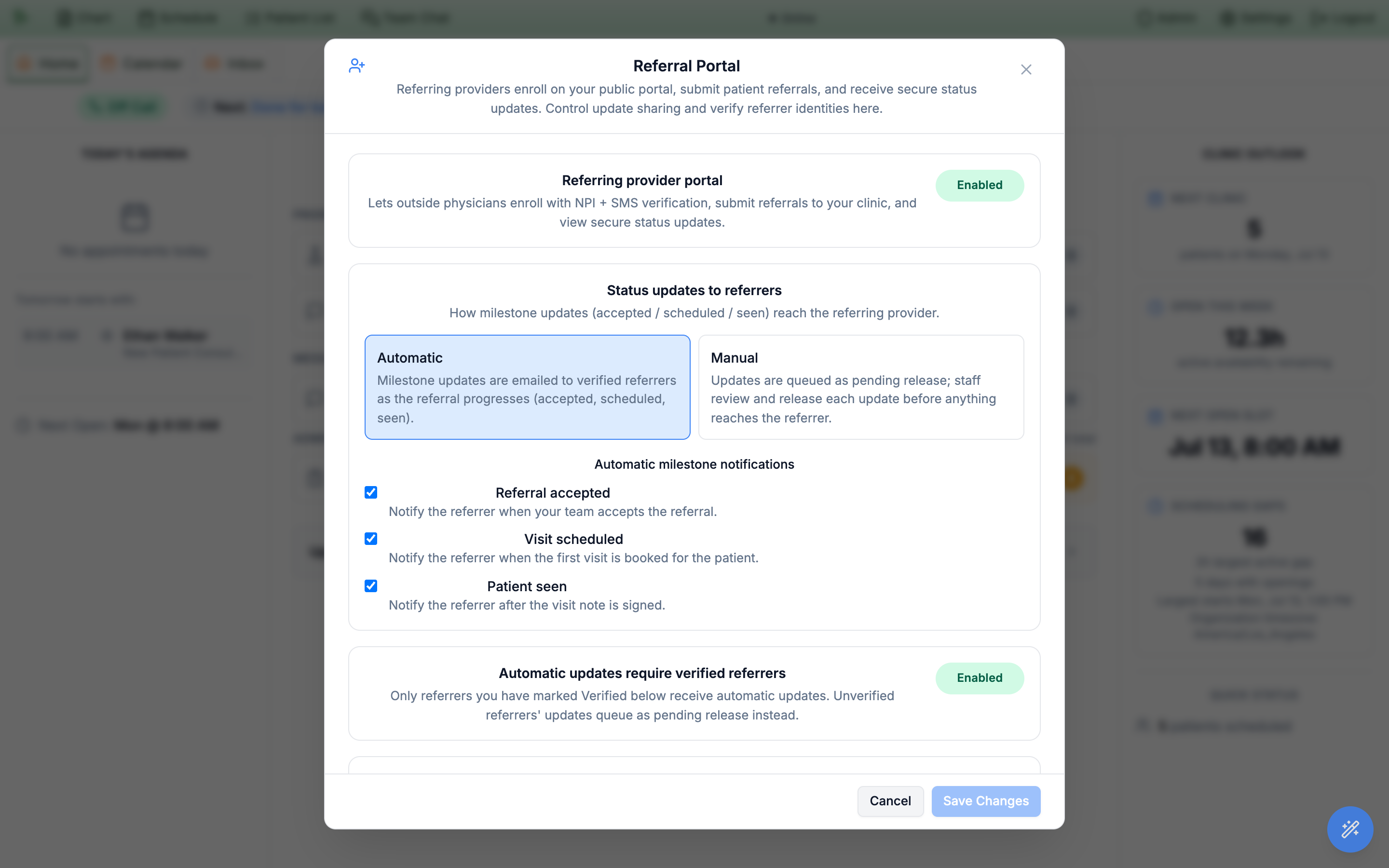
Admin → Referral Portal: the enable switch, the Automatic vs Manual update mode, the three milestone toggles, and the “require verified referrers” gate.The referrer directory: verify & block
The lower half lists every provider who has enrolled against your clinic, with a control to verify or block each one:
- Verify marks a referrer as a known, trusted correspondent. If your organization is set to require verified referrers, verification is what gates their automatic updates — an unverified referrer’s milestone emails are held back until someone verifies them.
- Block stops a referrer cold, in both directions: a blocked account can no longer sign in to the portal or submit new referrals to you, and every milestone email is suppressed. Use it for spam or a provider who should no longer be corresponding with your practice.
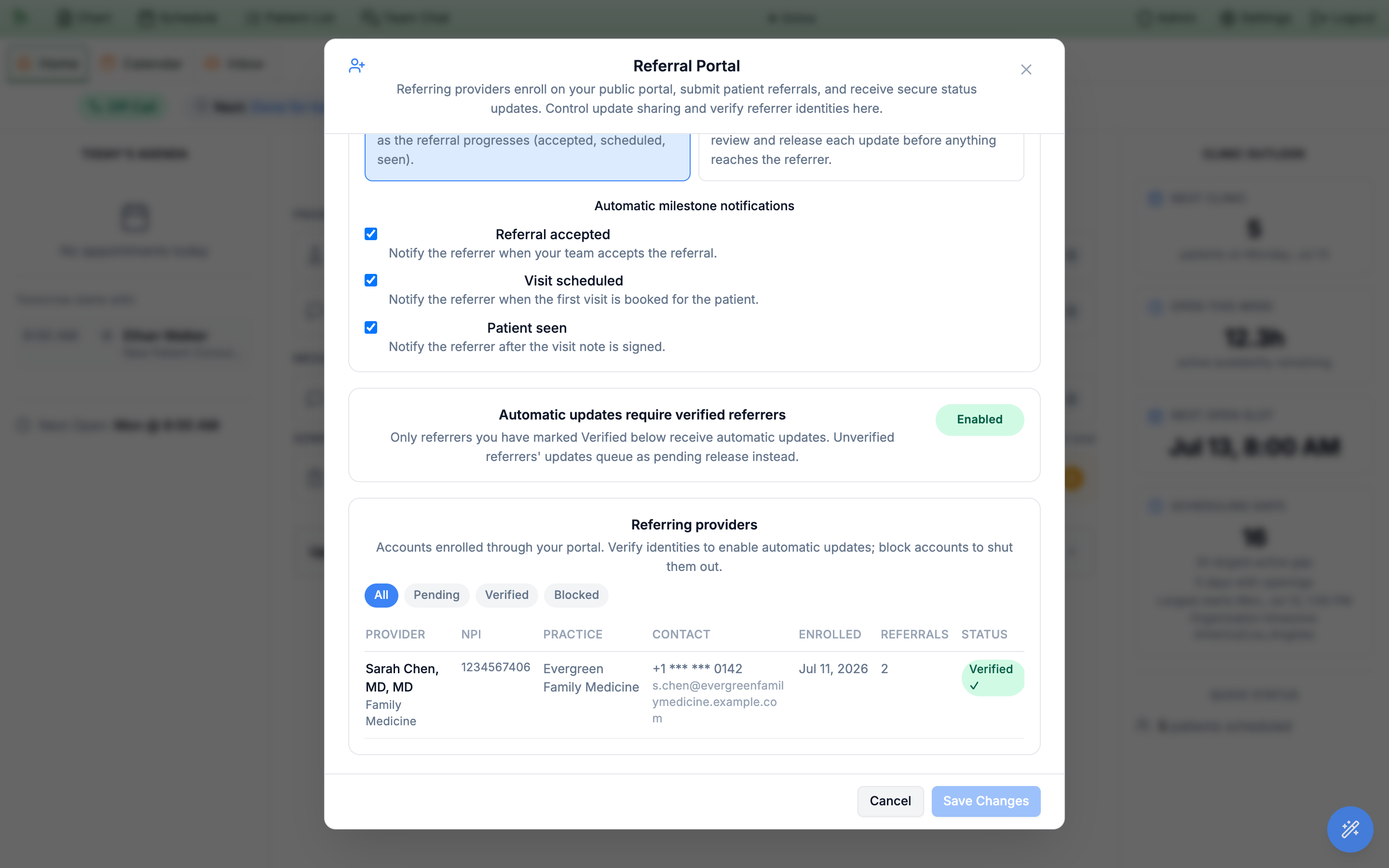
All / Pending / Verified / Blocked filters and per-referrer verify and block controls — here Sarah Chen, MD is verified.The Referral Communications card
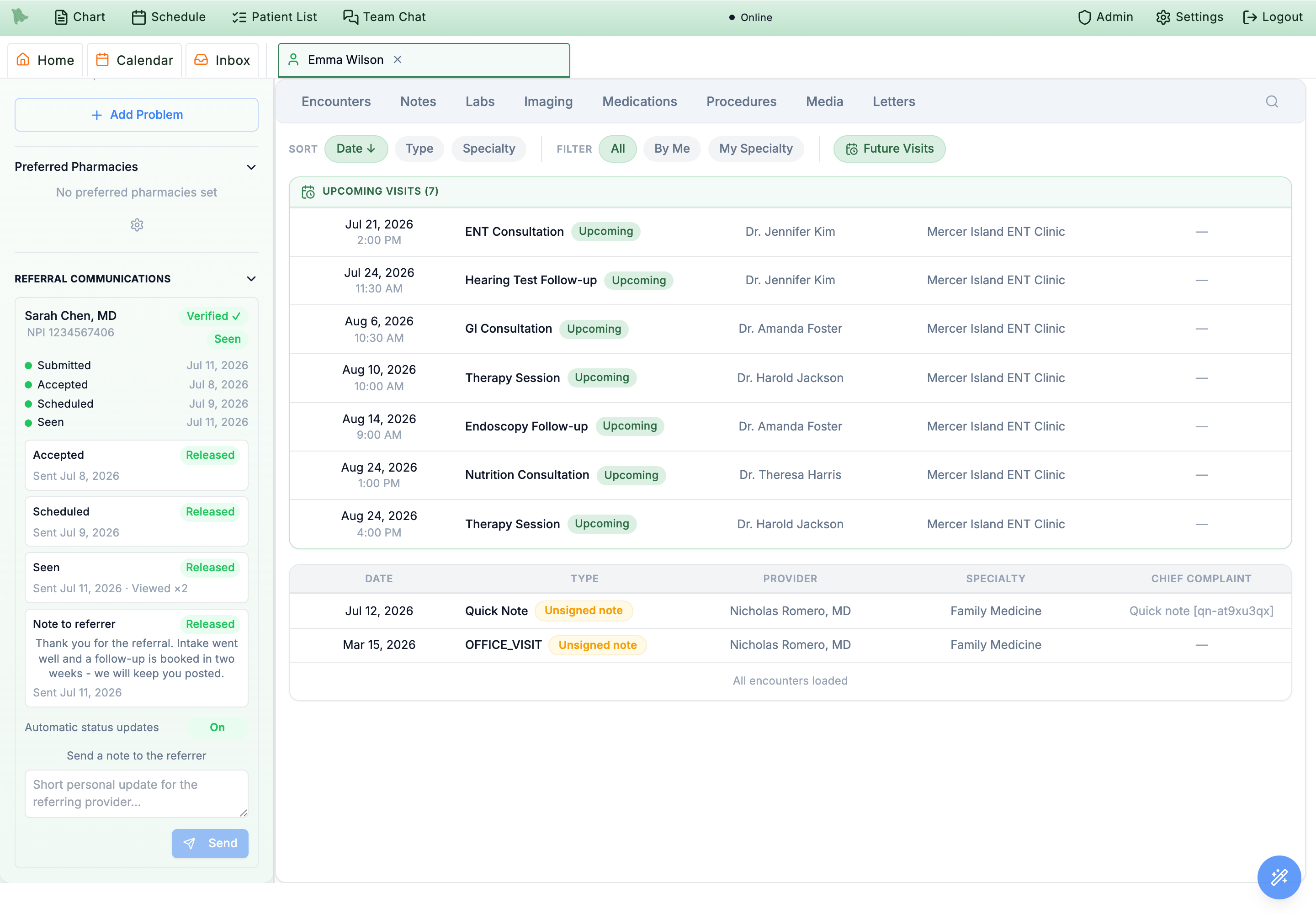
Once a referral is linked to a chart, that chart grows a Referral Communications section in the patient-info panel — it renders down the vertical panel, below Preferred Pharmacies; expand it if it’s collapsed. This is the care team’s window on the loop for that patient, and the place to send a personal note back to the referrer.
- The milestone timeline — submitted, accepted, scheduled, seen — with the date each step happened, mirroring what the referrer sees on their status page.
- Update release state. Each milestone shows whether its update has been released to the referrer or is still pending. In manual update mode (13.11) a pending update sits here with a
Releasecontrol until a staff member sends it; in automatic mode it releases itself. - A note composer. Staff can type a short personal note — “Intake went well, follow-up booked in two weeks” — and send it to the referrer. The note appears on the referrer’s secure status page under “From the care team.”
- A per-referral auto-update toggle. Even with the org in automatic mode, an individual referral can have its automatic updates turned off here — useful for a sensitive case where you’d rather release each update by hand.
The PHI-free update emails & status page
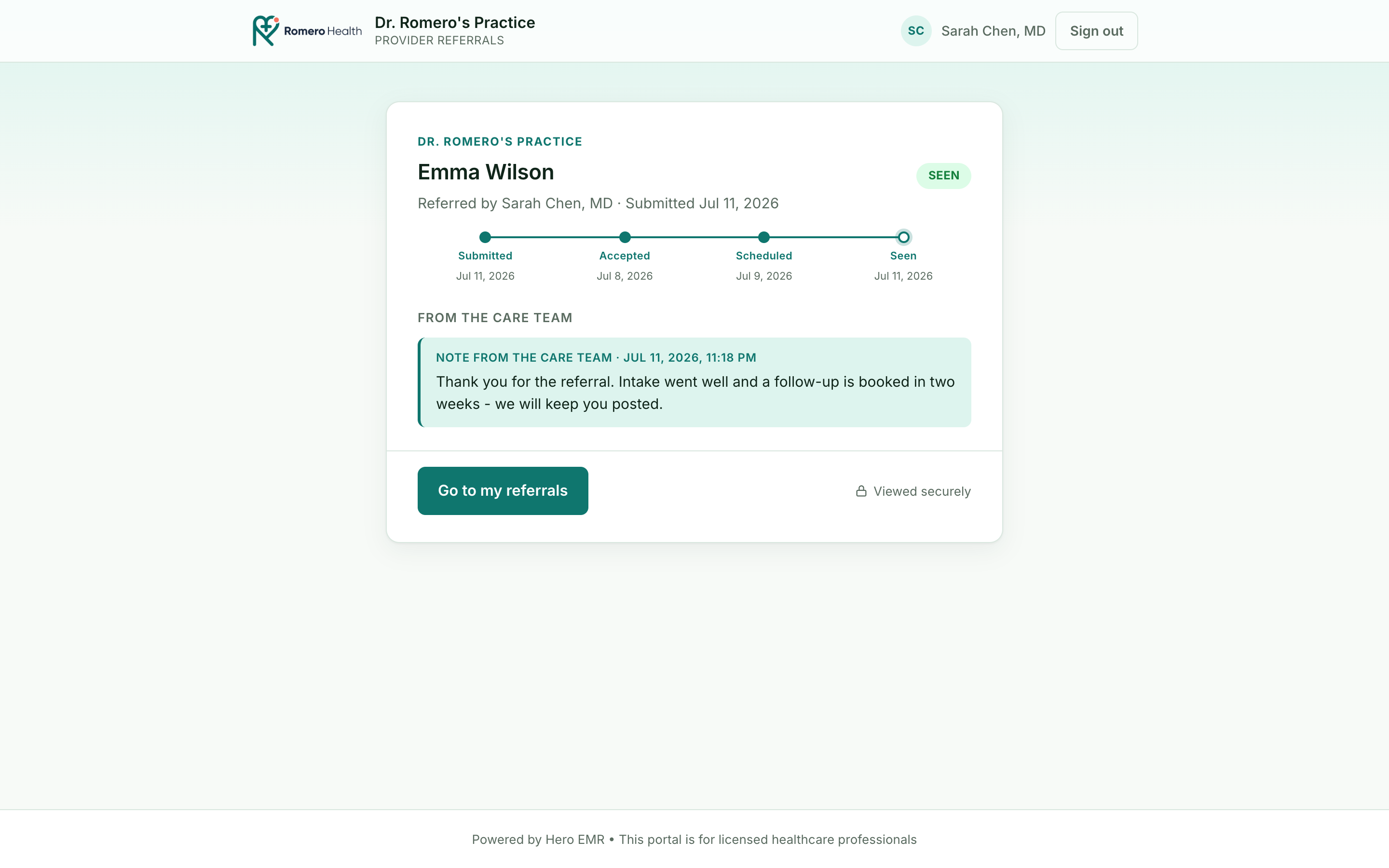
This is the half of the feature the referrer experiences after they’ve submitted: the automatic loop-closing updates. As the patient progresses — accepted at triage, scheduled on the calendar, and seen once the encounter is signed — Hero emails the referrer a short “you have an update” message. Crucially, the email itself carries no protected health information: no diagnosis, no note, not even the clinical reason — just a nudge and a secure link.
Following the link opens the referrer’s secure status page, which is gated before it shows anything:
- Verify to view. The link is verified either by a fresh one-time code texted to the referrer, or automatically if they’re on a device they previously chose to trust (the same trusted-device credential from sign-in). Only then does the page render.
- Read the loop. The page shows the patient, the current status, the full Submitted → Accepted → Scheduled → Seen timeline with dates, and any personal notes the care team released — each note stamped “from the care team” with its date.
- Links expire. Each secure link is good for about 7 days. After that the referrer simply opens the portal and signs in to see the same status live — nothing is lost, the one-time link just ages out.
Troubleshooting & FAQ
| Situation | What’s going on / what to do |
|---|---|
| “The referrer says the update link expired.” | Secure links age out after about 7 days — by design. Tell the referrer to open the portal and sign in (mobile number + texted code, or their trusted device); the same status shows live. The next milestone generates a fresh link. |
| “An update never went out.” | Walk the chain of switches: the org is in Manual update mode (the update is pending — release it from the chart’s Referral Communications card); that milestone toggle is off in Admin; the referrer is unverified while your org requires verification; the referrer is blocked; this individual referral has its per-referral auto-update toggle off; or the referrer opted out of updates themselves at enrollment (or later in their portal preferences). Any one of these holds the email — and the last one is absolute: an opted-out referrer receives nothing at all, not even a staff personal note. Look for the Updates off badge on the referral header, or Status updates: Opted out on the Referring Provider card. |
| “The referral never shows a ‘seen’ update.” | “Seen” fires when the encounter is signed, not merely when the patient checks in. Finish and sign the note and the milestone releases (subject to the same switches above). |
| “A referrer can’t find themselves in the registry.” | NPPES search is last-name-required; adding a state narrows namesakes. If they’re genuinely not in NPPES (or are a non-NPI role), they can use Enter your details manually to finish enrolling. |
| “The updates and the chart card aren’t appearing.” | The referral isn’t linked to a chart yet, because it hasn’t been accepted — accepting is what links or creates the chart. Open Inbox → Inbound Referrals, find the referral, and complete Accept referral…. If the pane instead offers Finish accepting…, an earlier acceptance didn’t complete; run it again. The milestone timeline and Referral Communications card hang off the linked chart. |
| “A returning referrer is asked for a code every time.” | They haven’t trusted the device, are on a different browser/device, or cleared site data. Trusting the device stores a rotating credential scoped to that browser and clinic; a new browser always starts with a texted code. |
| “We got a duplicate or spam referral.” | Decline it at triage. For a provider who should stop submitting, block them in the Admin referrer directory — a blocked account can no longer sign in or submit, and its updates are suppressed too. |
| “The portal link shows the wrong clinic’s branding.” | The branding and routing come from the org in the portal address — a link without (or with the wrong) org won’t resolve to your practice. The Referral Portal admin dialog doesn’t display the link, so share the exact address you were given rather than retyping it; if nobody has it, email support@heroemr.com for your clinic’s link. |
Still stuck? The portal footer reads “Powered by Hero EMR” on every screen — email support@heroemr.com and we’ll help you trace where an update stopped.
Need help? Email support@heroemr.com.