Faxing
Set up the active fax service, triage incoming documents, file them to the right chart, and confirm delivery when you send.
Faxing
Set up the active fax service, triage incoming documents, file them to the right chart, and confirm delivery when you send.
Work the Faxes inbox
Incoming faxes from Hero Fax or SRFax enter Inbox → Faxes. Hero reads the pages, suggests the document category and patient, and routes the work using your practice’s fax rules. Verify the original document before acting on its summary.
- Choose a folder.
Openholds outstanding work,Reviewholds items needing review,Doneholds completed items, andJunkholds faxes removed from the work queue. - Find a fax. Use
Search faxes,Category,Urgent, orCritical.Fax servicecan limit the list to Hero Fax or SRFax, including older items from a previous service. - Check whose queue you are viewing. The default is your own faxes plus the faxes shared with your message pools (Faxes assigned to me or my pools); a pool’s chip narrows the list to that pool. Practice administrators and staff with document-triage access can switch
MinetoAlland filter by assignee or pool. - Open the fax. Opening it marks it read. Read the summary, category, patient match, and original pages. Use
Assignto hand it to the right teammate or message pool (Search people or pools…; type p, a space and a pool name to search pools only), orChange categoryto correct the classification.
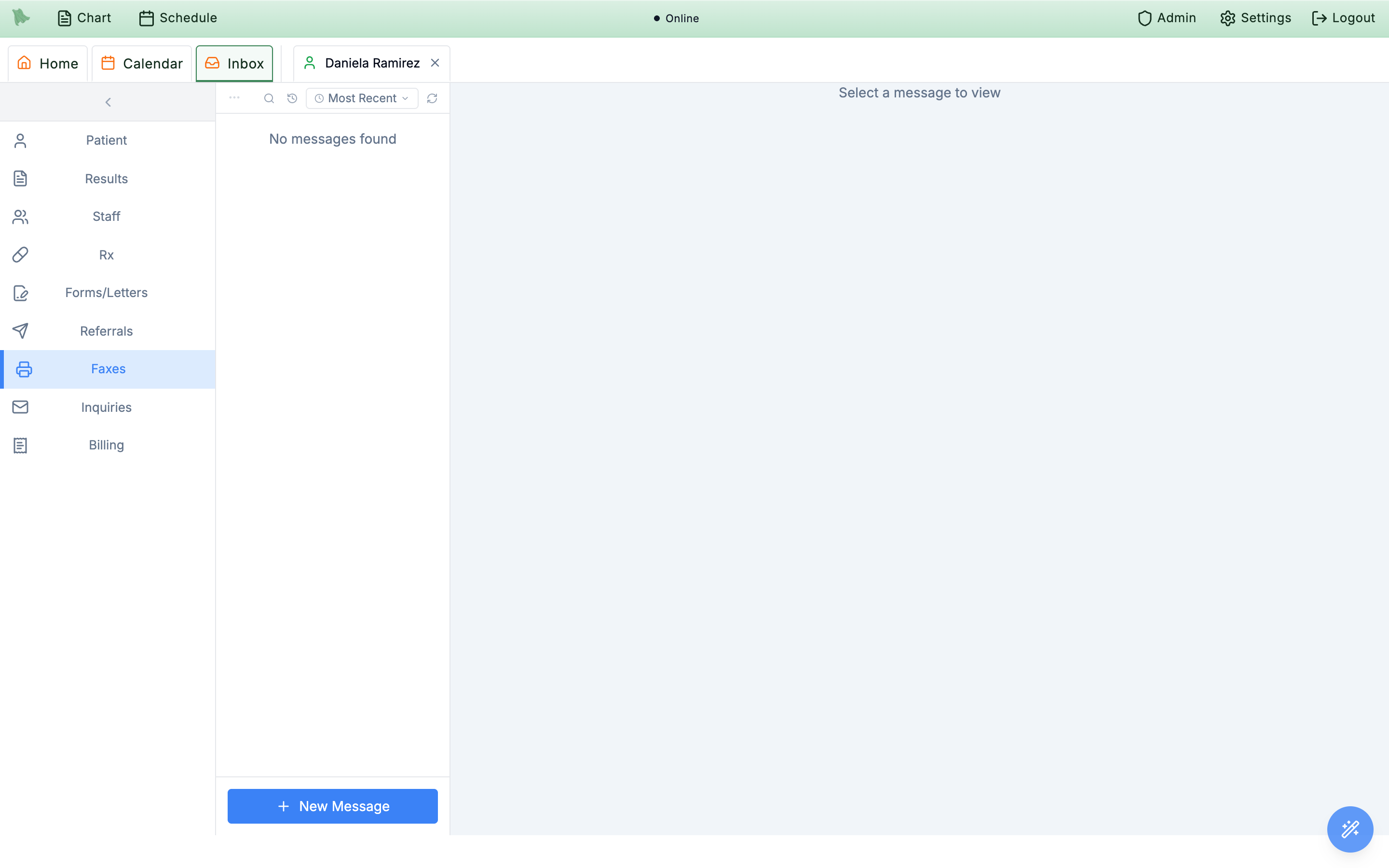
All if you have access, or ask the practice’s fax coordinator. Use Refresh faxes to reload the queue.Faxes shared with a message pool
A fax can go to a message pool — Front Desk, Referrals, Nurses — instead of one person. Everyone in the pool who works faxes (providers, administrators, and staff with document-triage access) sees it in their own Faxes inbox, and any of them can work it.
- Chips say who has it: the pool’s name (Shared with Front Desk: everyone in it sees this fax) and, once someone has opened it,
Opened by {name}. - One shared read. The first person to open a pool fax marks it read for the whole pool, so it leaves everyone’s unread count at once.
Take itmakes a pool fax yours: This fax left Front Desk and is only in your inbox. To hand it back,Assignit to the pool.
Set it up: Admin → Fax Triage
Each category’s Send to can be A specific person, A pool, or Whoever handles unsure faxes. With A pool, everyone in the pool sees these faxes. Any of them can work one or take it. Unsure faxes in Fallback & escalation and When AI reading is off also take a person or a pool. Only pools with members are offered; create one or add people in Admin → Messaging → Pools. The people alerted about an urgent fax are always individuals.
Read the original pages and the triage summary
The fax detail shows the original pages alongside What this is, sender information, the Patient match, and any Automation results. Received uses the practice time zone. Attachments lists the files; Timeline records what happened to the fax.
Compare names, birth dates, and clinical information on the pages with the suggested chart. A summary or confident match is a starting point for review. If the reading is wrong, correct the category or patient; staff allowed to manage fax rules can also use Re-read.
Link the patient and file the fax to the chart
- Check the
Patientcard. Confirm a suggested match or useSearch for a patient…to select the correct chart. If a new patient needs a chart, review the extracted details beforeCreate patient; use an existing chart when Hero finds a duplicate.Create patientis offered only to people allowed to register patients. - Use
File to chart. This needs a linked patient. If automatic filing already completed, the action readsFiled to chart. Linking and filing are separate actions, so check filing rather than assuming that choosing a patient completed it. - Read the result. Under
Automation,Chart importreports progress or an error. A completed import may also show how many chart values were added.Open in chartgoes to the patient’s Media tab. - Finish the work. Add an optional
Completion noteunderFinishand chooseMark done. This closes the work item; it does not itself file the document.
Unfile asks you to review what will be removed. Filing may have added chart values as well as the document, so this is more than moving a PDF out of a folder.Add authorization from this fax under Open chart reads its pages and fills in the authorization for you to check and save (when your practice has letter reading turned on) — see Prior auth letters & corrections.Handle faxed orders and refill requests
Review the original fax, verify the patient and medication or test details, and use the normal prescription builder or standalone order workflow for your clinical decision. A fax summary is not a prescription approval.
Electronic pharmacy requests appear in Rx, and patient refill requests appear in Refills. Those worklists are separate from Faxes. A faxed referral can also show referral automation and an Open referral action; see Inbound referral triage. A referral fax that came from your practice’s own fax number (a test referral sent to yourself, for example) is held for staff: Hero doesn’t accept it or contact the patient, and the fax says “This fax came from your own fax number, so Hero did not accept it or contact the patient.”
Check delivery and recover from a fax problem
A send confirmation means the fax was queued. Delivery is checked afterwards. For Hero Fax documents, open Admin → External Providers → Hero Fax and look under Your recent faxes. It lists documents you sent, their page count, status, and any error.
| Hero Fax status | What to do |
|---|---|
| Queued / Sending | Wait for a final result. Check delivery refreshes a pending fax. Do not send the document again just because it has not finished. |
| Delivered | The send completed successfully. |
| Failed | Read the error, verify the destination and fax setup, then send again if appropriate. |
Referral delivery also appears on the referral. A queued referral is still awaiting final fax delivery; check its latest result when confirming that the receiving office has been sent the document.
For incoming work, Mark done moves a fax into Done. Junk moves an unwanted fax aside, and Not junk restores it. Right after you mark a fax done — with the button or the keyboard shortcut — Undo puts it back in Open. Later, open the Done folder, select the fax, and choose Reopen. Reopening returns the work item to Open and keeps its review notes and history; it does not undo anything already filed to the chart.
Refresh faxes. Hero Fax and SRFax cannot both be active for the practice. The connection test checks Hero Fax sending and receiving together.Get a dedicated Hero Fax number
A practice administrator or staff member allowed to manage integrations can set up Hero Fax under Admin → External Providers → Hero Fax, in the Fax group. This is a dedicated fax number, separate from the practice’s voice and text numbers.
To keep the practice’s current fax number instead, open Admin → Practice Setup, find Fax setup, and click Request port. Hero emails a short authorization form to sign and asks for a recent bill from your fax service. Keep your current fax service on until Hero says the move is done.
- Choose one fax service. Disconnect every SRFax account in the practice before enabling Hero Fax. While Hero Fax is active, SRFax setup and sending are unavailable. Existing fax records remain available.
- Search available numbers. Under
Get a fax number, enterArea code, optionally narrow byEnds with, and pressSearch. If nothing matches, try a nearby area code or clear the ending. - Review the price. Choose
Use this number, review the setup amount and monthly rental plus per-page usage, then confirm withBuy and set up. Quotes last ten minutes; an expired quote or a changed price returns you to current availability before purchase. - Wait for activation.
Setup pendingmeans setup has not finished. UseRefresh registrationinstead of buying a second number. Once active, Hero Fax handles incoming faxes, document sends, referrals, and automatic signed-note delivery. - Test both directions. Under
Test send & receive, clickSend test fax. Hero sends a synthetic page to your own number. Wait for both delivery andReceived · test code verified; a delivered test alone does not prove the fax came back into the Inbox. Standard usage applies.
Pause Hero Fax stops new incoming and outgoing Hero faxes, but the number stays reserved and its monthly charge continues. Pause before connecting SRFax; use Enable Hero Fax to resume after disconnecting SRFax.The setup screen shows number rental plus usage, and recent sends show page counts. There is no practice-facing monthly page-usage dashboard in this screen.
Send a document using saved fax contacts
- Open
Send faxfrom a document viewer. You can also upload a PDF underSend a documenton theHero Faxsettings tab. Confirm the activeFax service. If the practice has no fax number yet, administrators and staff who manage integrations seeSet up a Hero Fax number, which opens the Hero Fax tab; everyone else is asked to have their practice administrator set one up in External Providers → Hero Fax. - Choose the recipient. Pick from
Saved contacts, or enterTo fax numberandRecipient name. Verify the number even when using a saved contact. - Save a new number when useful. Tick
Save this number to your fax contacts (named after the recipient). A recipient name is required to save it. Contacts are shared with the practice, and are saved after the fax is queued successfully. - Review and send. Check
Subject, the optional cover page andCover page note, andAttachment. Submit the fax, then check its final delivery status as described above.
All contacts in one place. Manage contacts next to the saved contacts opens Admin → Contacts in a new browser tab, where you can add, change or delete every lab, imaging center and office your practice sends to (Contacts).
See what an incoming fax answers
Many incoming faxes answer something you sent: a records request, a referral, or an insurance appeal. The Reply to card in the fax’s detail pane pairs the incoming fax with the fax you sent, or with the appeal it answers, so the answer is found where the question was asked.
- Already linked. The card names the fax we sent (where it went, when and how many pages) or the appeal, and how it was linked:
Linked by Hero,Linked by Billing HeroorLinked by staff. Hero links a fax to an appeal on its own only on strong evidence, such as the Hero appeal reference from our cover sheet, or the same claim number together with the same patient or member ID. A reply to an ordinary fax we sent is only suggested, for you to link. - Suggestions. Under
Might be a reply to(orAlso might answer), Hero lists likely matches with what matched:Hero reference HA-…,Same claim number,Same patient,Same member ID,Faxed from the number we sent to,Same insurance company,Arrived after the appeal was sent. ClickLinkon the right one. - Search.
Find another…searches by patient, claim number or reference (HA-…) for appeals, or by fax number or recipient for faxes you sent. - Undo a wrong link.
Unlinkasks Unlink this fax? (KeeporUnlink). Unlinking an appeal also removes anything the fax had added to that appeal for review. Open appealopens the appeal in the practice’s appeal kit, where a linked answer waits under Needs your review — see Appeals.
Linking and unlinking need fax-triage access. The appeal parts of the card appear only for people who can work appeals.
Reply to, forward, or fill in and sign a received fax
From a fax in Inbox → Faxes you can fax back whoever sent it (for example, to tell a lab a result is for someone who isn’t your patient), send it on to another office, or fill in and sign a form that came by fax and fax it back. Each one opens your practice’s normal Send fax window, and the fax you send is linked to the one you received.
Reply by fax
- Open the fax and click
Reply by fax. It sits next toFile to chartat the top of the fax, and in the viewer you open withOpen viewer. - Check who it goes to.
To fax numberstarts as the number the fax came from (From the fax this came in on), andRecipient nameis filled in when Hero knows the sender from your contacts, your provider list or the fax itself. If they asked for replies at another number, change it, or searchFind a contact. - Choose
What to send.Cover note onlysends just your note on the cover page.The fax we receivedsends its pages; untick a thumbnail to leave that page out (All/Nonefor long faxes).Edited copysends a copy you filled in withEdit & sign(below).A PDFsends a file from your computer. When the fax is linked to a patient,Attach from chartadds notes or documents from their chart after it. - Write the
Cover page noteand send. Next to the button Hero says exactly what will go, for example Cover page + 2 pages. ClickSend fax. Pressing Enter in a field never sends the fax.
Forward
Forward (in the fax’s actions, under More on a narrow screen, and in the viewer) opens the same window with no number. Search Find a contact (saved contacts and your provider list) or type the fax number, choose the pages, add a cover note if you like, and send. Scanned paper has no sender to reply to, so it offers Forward only.
Edit & sign a form that came by fax
- Open the editor. Click
Edit & signin the fax’s actions, or inWhat to sendinside the Reply window. The pages open full screen. - Fill it in. Pick a tool, then click the page:
Text(T; click and type, Enter starts a new line),Check(K; ticks a box),Date(D; today’s date on your practice’s calendar),Sign(S) andWhite-out(W; drag over what should go). Drag anything you placed to move it, nudge it with the arrow keys, use−/+to resize it,Remove(Delete) to take it off, andUndo(Ctrl/⌘+Z). - Sign with your own signature.
Signplaces your saved signature (Settings → Profile) with Electronically signed by <your name> on <date> under it. Only a provider with a saved signature can sign, and only with their own; nobody can place someone else’s signature. Staff can still type, tick, date and white out. - Click
Save copy. You go back to the Reply window withEdited copychosen and its pages shown; send it as above.
Sent from this fax → Edited copies with Send, Edit again and, when the fax is linked to a patient, File to chart (it is filed as its own document). What you white out is removed from the copy, not just covered.Follow what you sent
Sent from this faxon the fax lists every reply and forward, for example Replied by fax to (555) 123-4567, when, who sent it and what went (Cover page + 2 pages), with its status:Sending,Delivered,Trying againorNot deliveredwith the reason.Retryreopens the window filled in with the same number and note, and with the fax exactly as it first went (The fax as first sent) when Hero kept a copy. Every reply is also listed inFaxes → Sent(Open in Senton one that wasn’t delivered), where it says A reply to a fax you received withOpen itto come back.- Mark done when you’re finished. After a send, the fax offers
Mark done; it is never marked done on its own. The fax’sTimelinerecords Replied by fax, Forwarded by fax and Edited copy saved.
Try again. Esc or Cancel asks before throwing away a fax you have not sent.Replying, forwarding and editing need fax-triage access (providers, administrators, and staff who work faxes). Sending with Hero Fax also needs the document access every fax send needs.
Need help? Email support@heroemr.com.